
Off until you switch it on.
Your provider, your key, your limits.
Summaries, reply drafts, suggestions you approve, translation, answers from your knowledge base, voice-note transcripts and image descriptions. The AI never sends a message: a person reads every draft and presses Send.
01Switch it on
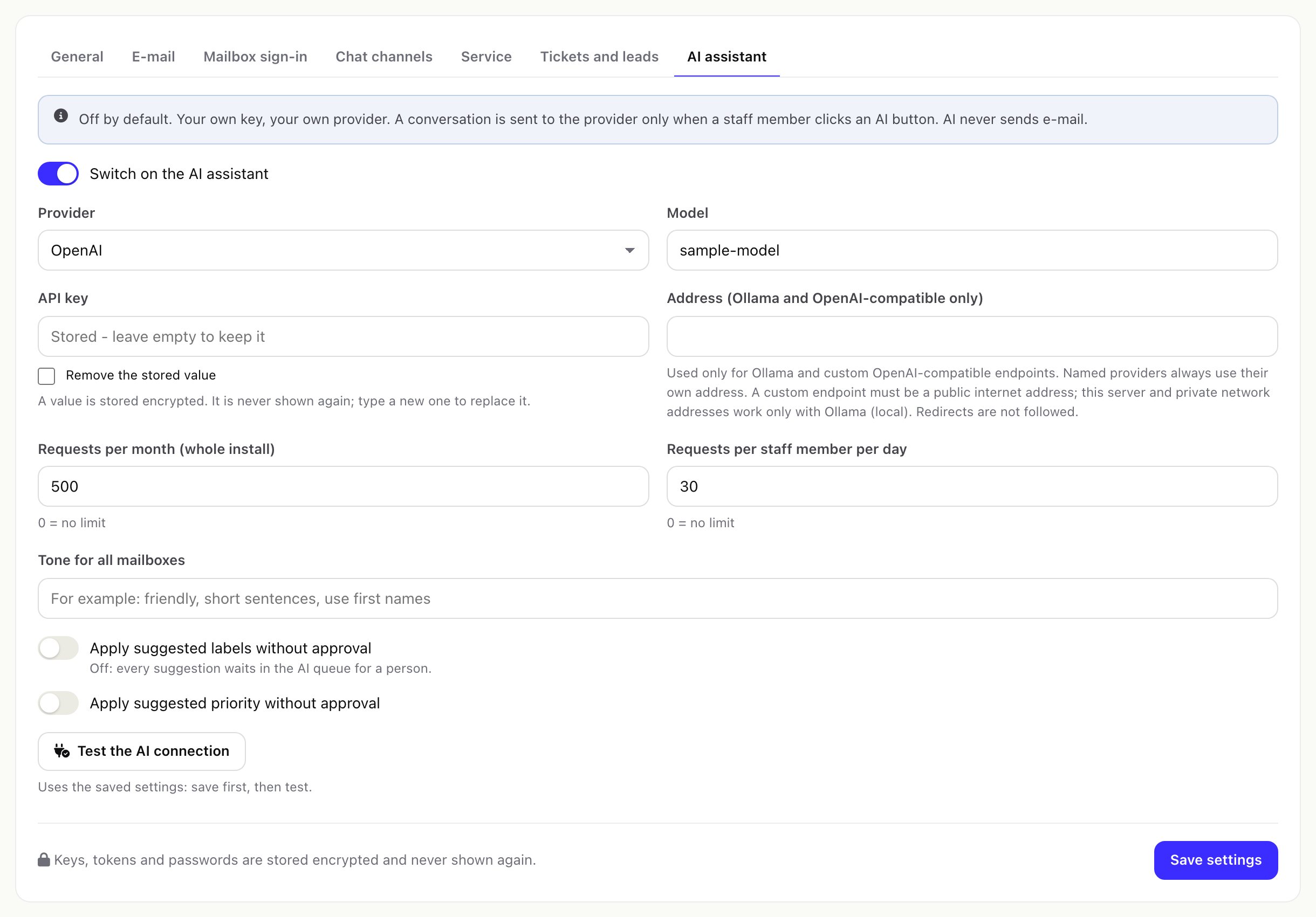
- Open the settings. Setup > Settings > AI assistant (permission Settings).
- Pick a provider: Anthropic Claude, OpenAI, Google Gemini, OpenRouter, Ollama (local) or any OpenAI-compatible endpoint.
- Model. Type the model name exactly as your provider lists it.
- API key. Paste your own key from the provider. It is stored encrypted and never shown again. Ollama and a custom endpoint may not need one.
- Address. Only for Ollama and OpenAI-compatible endpoints. A custom endpoint must be a public internet address; this server and private network addresses are accepted only for Ollama. Redirects are not followed. Named providers always use their own address.
- Limits. Requests per month (whole install), default 500, and Requests per staff member per day, default 30. 0 means no limit.
- Tone. Optional, for all channels; each channel and mailbox can have its own AI tone.
- Switch on and test. Tick Switch on the AI assistant, press Save settings, then Test the AI connection.
02What staff can do with it
| Button | Result | Who |
|---|---|---|
| Summarise | A short summary of the conversation, shown to you. | Staff who can open the conversation |
| Draft a reply | A draft in the reply editor, shaped for the channel. Optionally tell it what the reply should say. You read, change and send it. | Staff who can write replies |
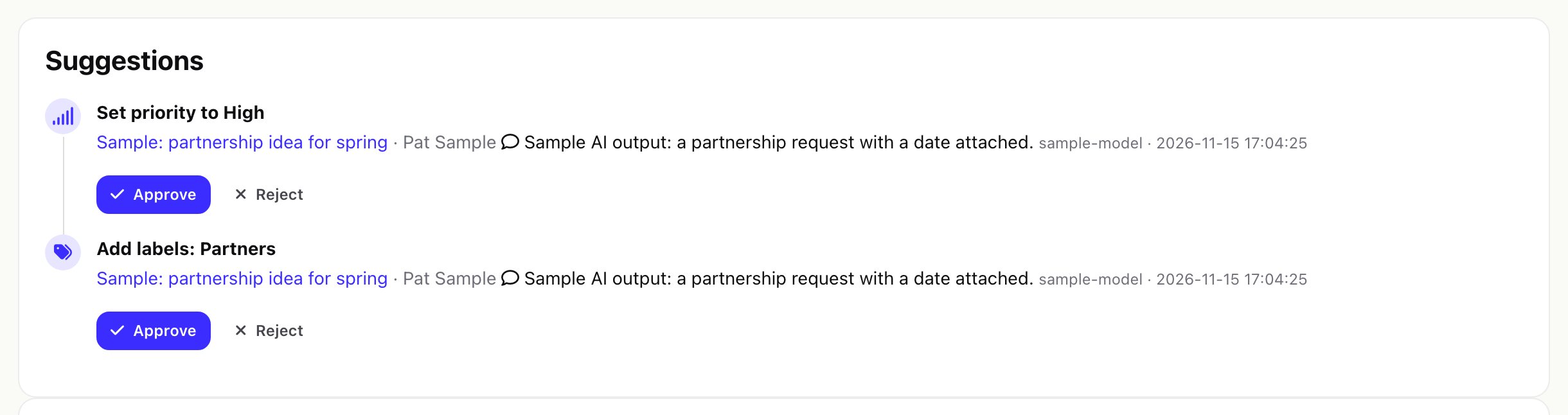
| Suggest labels, priority, intent and mood | Suggestions wait in the AI queue until someone approves them. Nothing changes before that. | Staff with Assign, change status, labels and links |
| Translate (under a customer message) | The message in your Perfex language. The translation is kept, so colleagues see it too. | Staff who can open the conversation |
| Translate my reply | Your reply in the customer's language, in the editor. Not stored. | Staff who can write replies |
| Answer from the knowledge base | A draft based on your Perfex knowledge base articles and the customer's open invoices and tickets that you may see. If nothing matches, nothing is sent to the provider. | Staff who can write replies |
| Transcribe / Describe image | Text for a voice note or a picture from the customer, kept with the message and reused in later summaries. | Staff who can open the conversation |
Apply suggested labels without approval and Apply suggested priority without approval (both off by default) skip the queue for those two kinds.
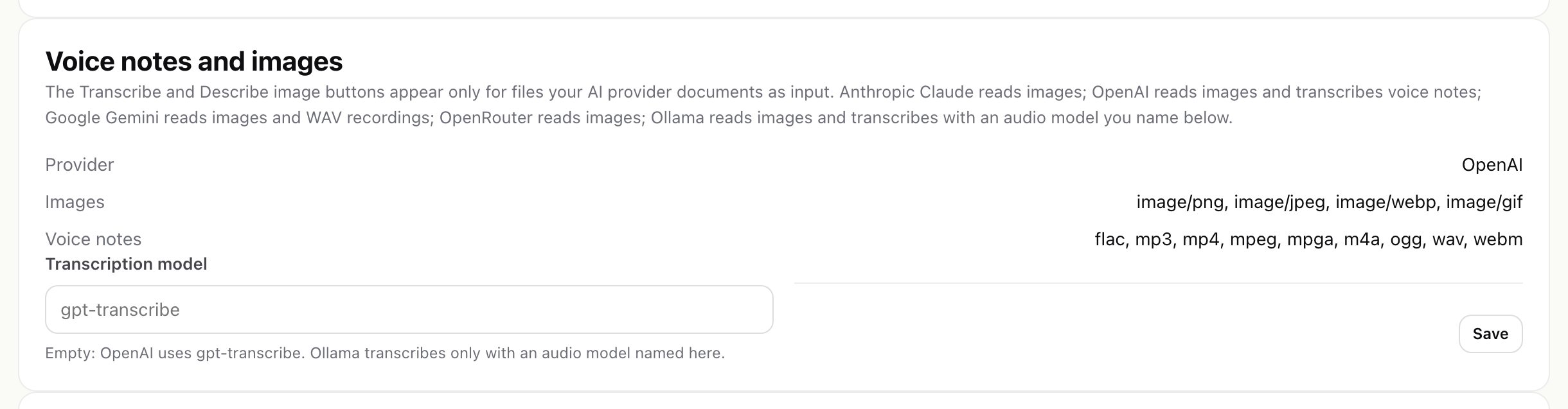
The Transcribe and Describe image buttons appear only for files your provider documents as input: Anthropic Claude reads images; OpenAI reads images and transcribes voice notes (default model gpt-transcribe, or the Transcription model you name on the AI queue page); Google Gemini reads images and WAV recordings; OpenRouter reads images; Ollama reads PNG and JPEG images and transcribes only with an audio model you name. A custom endpoint gets neither button. Whether a particular model behind OpenRouter, Ollama or a custom endpoint accepts a file depends on that model.
03What is sent to the provider
Content goes to your AI provider only when a staff member clicks an AI button, or for automatic translation an administrator switched on for a channel. For a conversation the module sends:
- the subject, the channel, the channel account's name and the customer's language setting,
- up to the 60 most recent messages, each cut to 3,000 characters and all together to about 14,000 characters: who wrote (customer or your team), when, on which channel, the sender's name and address, and the text,
- the names and types of attached files, and transcripts or image descriptions made earlier,
- for a draft, your instruction and the tone; for Answer from the knowledge base, the matching knowledge base articles and the customer's open invoices and tickets you may see; for Transcribe or Describe image, that file.
Internal notes are never sent. Nothing is sent to the author of the module. Your provider's terms decide how it handles the data; check them, and mention the provider in your own privacy notice if you use AI.
04The AI queue page
Omnithread > AI queue appears in the menu when AI is on. It shows your requests today, the requests this month and the tokens used, the suggestions waiting for approval with Approve and Reject, and recent decisions.
Staff with the Settings permission also see there:
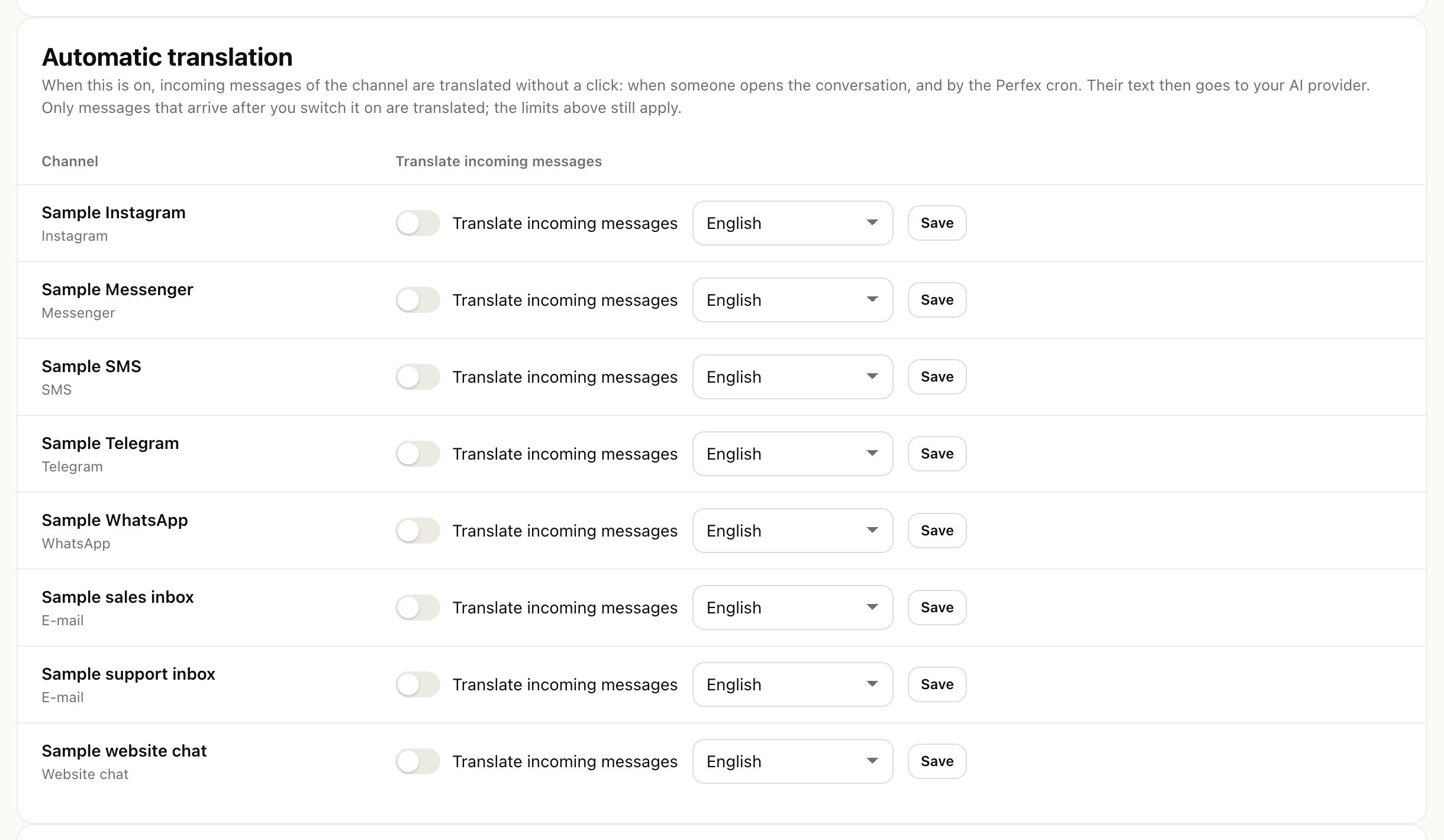
- Automatic translation per channel: when on, incoming messages of that channel are translated without a click (when someone opens the conversation, and by the Perfex cron), into the language you choose. Only messages that arrive after you switch it on are translated, and the limits still apply.
- Voice notes and images: what your provider reads, and the transcription model.
- AI audit log: every AI request with who, what for, which model and the token counts (not the message content), linked in a hash chain. The page checks the chain and says Chain intact, or where it is broken.
05Steward AI tools
If the separate Steward AI module is installed in the same Perfex, Omnithread offers it four read-only tools: search conversations, read one conversation, list unanswered conversations and list missed SLA targets. They work within the rights of the staff member who asks and change nothing.