
WhatsApp, Messenger, Instagram,
Telegram and SMS.
Every chat channel is connected the same way, in four numbered steps: paste your account values, paste the webhook address at the provider, test, switch on. This page has the exact clicks for each provider.
01The four steps for every chat channel
Open Omnithread > Setup > Channels, press Add a channel and pick the type. Your CRM must have a public https:// address (the System check tells you).
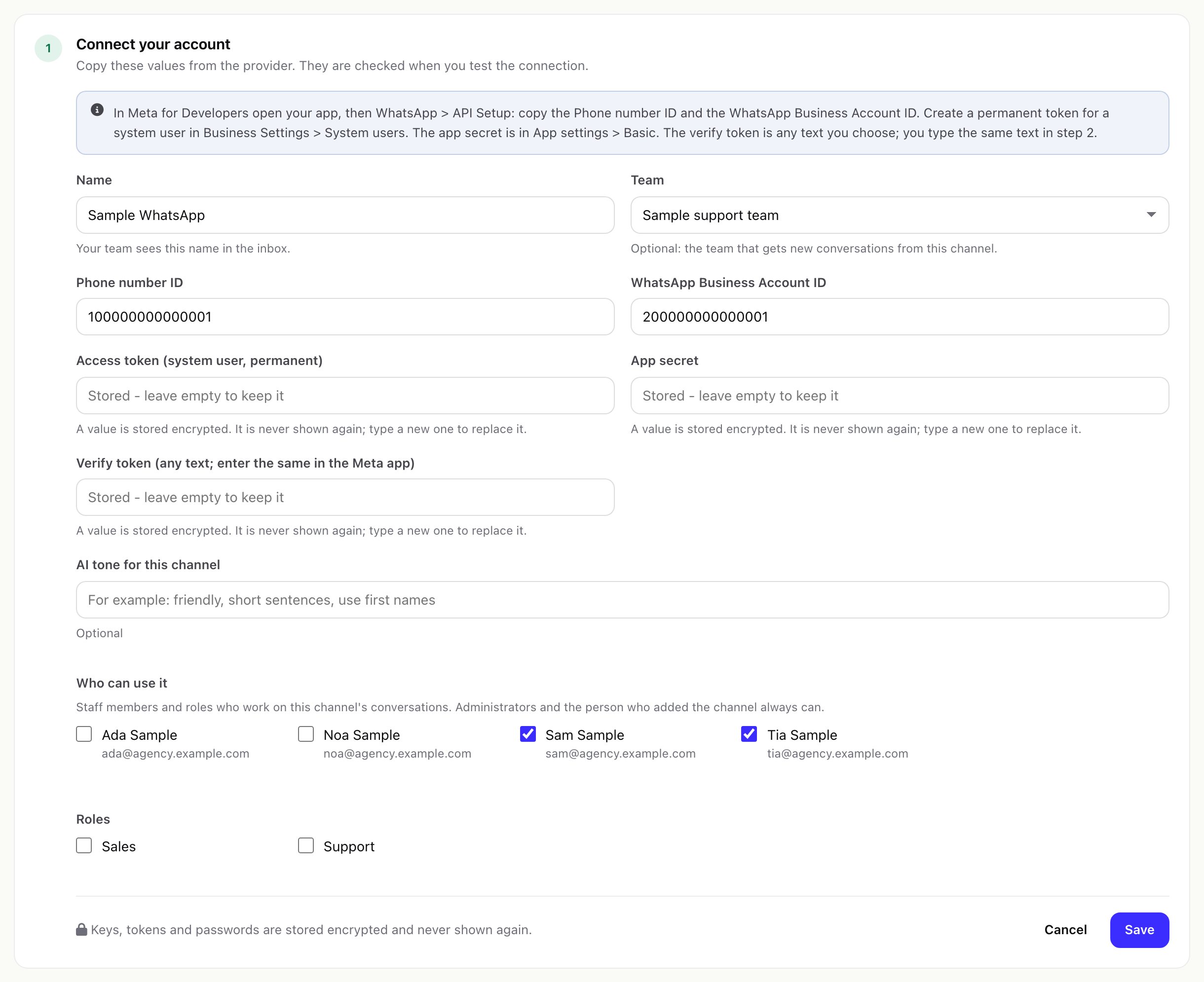
- Connect your account. Paste the values from the provider. Give the channel a name your team sees, optionally a team that gets its new conversations, an AI tone, and tick under Who can use it the staff members and roles who work on it. Press Save. Keys, tokens and secrets are stored encrypted and never shown again; leave a field empty later to keep the stored value.
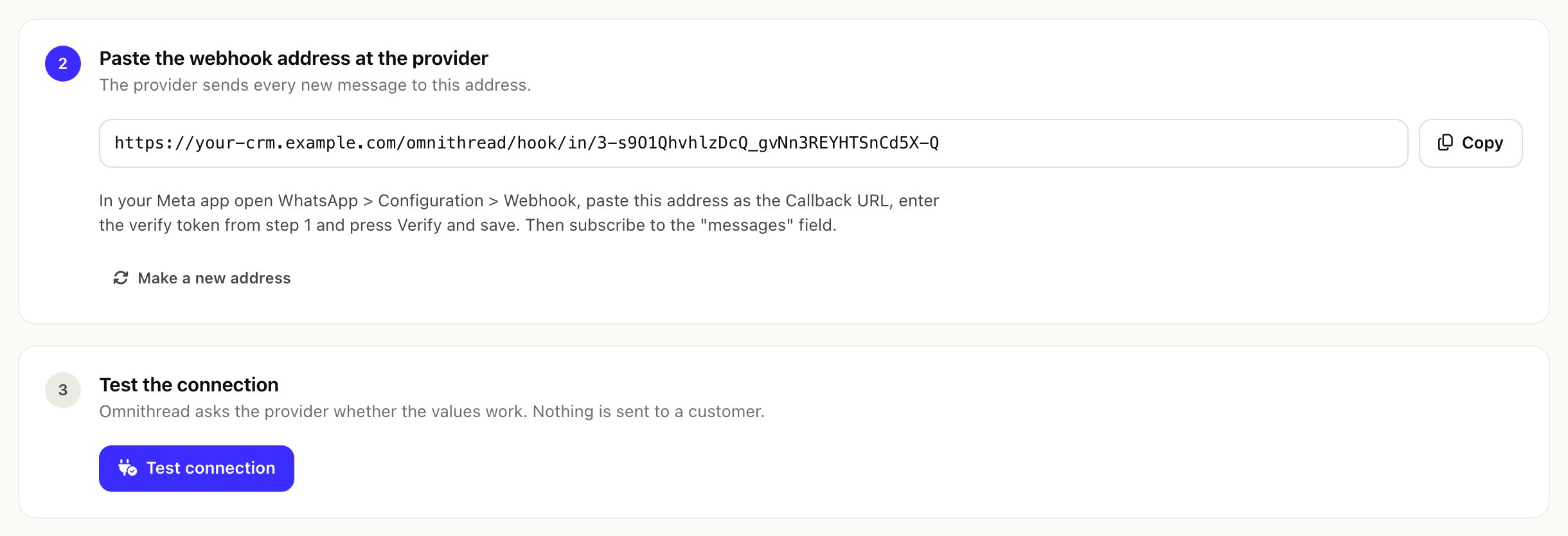
- Paste the webhook address at the provider. Omnithread shows the channel's own address, for example
https://your-crm.example.com/omnithread/hook/in/3-…. The part after the number is a secret key: treat the whole address like a password. Make a new address replaces the key; the old address stops working at once, so paste the new one at the provider right away. - Test the connection. Omnithread asks the provider whether the values work and shows what it found (for example the business name and phone number). Nothing is sent to a customer.
- Switch on. A channel that is on receives and sends. Switching it off pauses it without losing any setting or conversation.
02WhatsApp Cloud API
You need a Meta app with the WhatsApp product and a WhatsApp Business Account with a phone number. Meta's guide: Get started with the Cloud API.
- Collect the values. In Meta for Developers open your app, then WhatsApp > API Setup: copy the Phone number ID and the WhatsApp Business Account ID. Create a permanent access token for a system user in Business Settings > System users. The App secret is in App settings > Basic. The Verify token is any text you choose.
- Save step 1. Paste the five values in Omnithread and save.
- Connect the webhook. In your Meta app open WhatsApp > Configuration > Webhook, paste the Omnithread address as the Callback URL, type the same verify token and press Verify and save. Then subscribe to the messages field.
- Test the connection. It shows the business name, the phone number and its quality rating.
- Switch on. Send a WhatsApp message to the number from your own phone.
What arrives: text, photos, voice notes and other audio, documents, locations (with a map link) and button replies. Sent, delivered, read and failed statuses show on your replies.
The 24-hour window. WhatsApp lets you write freely for 24 hours after the customer's last message. After that the composer offers only approved message templates; when the customer answers, the window opens again.
03WhatsApp message templates
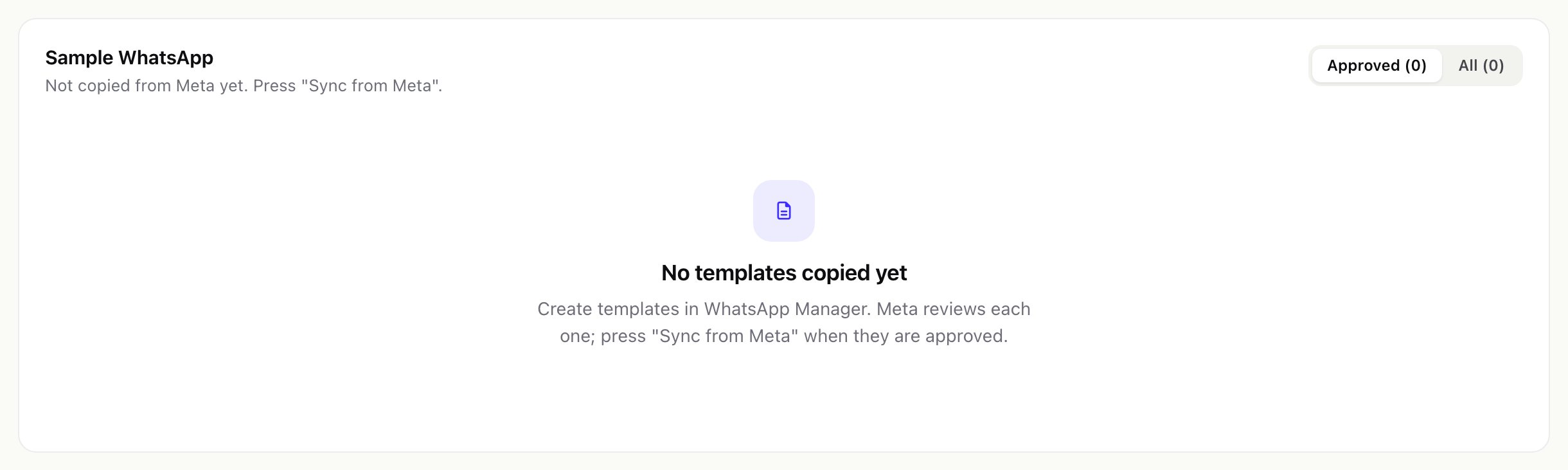
- Create templates in WhatsApp Manager. Meta reviews each one.
- Copy them into Omnithread. Open Setup > WhatsApp templates, pick the number and press Sync from Meta. Approved templates are listed first; All shows those in review, rejected or paused too.
- Send one. In a conversation whose window has closed, choose the template, fill in each value (
{{1}},{{2}}…) and press Send template. Only staff who may send replies without approval can send a template.
04Facebook Messenger
- Collect the values. In Meta for Developers open your app, add the Messenger product and connect your Facebook Page. Copy the Facebook Page ID and generate a Page access token. The App secret is in App settings > Basic. The Verify token is any text you choose.
- Save step 1. Paste the values in Omnithread and save.
- Connect the webhook. In your Meta app open Messenger > Settings > Webhooks, paste the Omnithread address as the Callback URL with the same verify token, then subscribe the Page to messages and messaging_postbacks.
- Test and switch on. Then write to your Page from a personal account.
Replies are possible within Meta's messaging window after the customer's last message; outside it the composer tells you to wait until they write again. Files go both ways. Until your Meta app has the access Meta requires, Meta may deliver messages only from people who have a role in the app; to talk to everyone, your app may need Meta's App Review (Meta App Review, Messenger webhooks).
05Instagram direct messages
- Link the accounts. Link your Instagram professional account to your Facebook Page.
- Collect the values. From the Meta app that has Instagram messaging: the Facebook Page ID, the Page access token, the App secret, a Verify token of your choice, and the Instagram account ID linked to the Page. If you do not know the ID, save the other values and run Test connection: it shows the Instagram account linked to the Page, and tells you if the ID you typed is a different one.
- Connect the webhook. In your Meta app open the Instagram webhook settings, paste the Omnithread address as the Callback URL with the verify token, and subscribe to messages. Meta's reference: Instagram webhooks.
- Test and switch on. Then send a direct message to the account.
The same messaging window and App Review notes as Messenger apply.
06Telegram bot
- Get a bot token. In Telegram open @BotFather, send
/newbot(or/tokenfor an existing bot) and copy the token. - Save step 1. Paste the bot token in Omnithread and save. The webhook secret can stay empty: Omnithread makes one from the bot token.
- Nothing to paste. Test connection checks the token and registers the webhook address with Telegram for you. Run it again whenever you make a new address.
- Switch on. Write to your bot from your own Telegram account.
Private chats with the bot only; group and channel messages are ignored. Text, photos and documents go both ways, and your replies quote the customer's message. A Telegram message holds up to 4,096 characters. Telegram's reference: Bot API.
07SMS through Twilio
- Collect the values. In the Twilio Console copy the Account SID (it starts with AC) and the Auth token from the dashboard, and the Twilio phone number that sends (in E.164 form, for example
+15550100099) or a Messaging Service SID. - Save step 1. Paste the values in Omnithread and save. A sender number or a Messaging Service SID is required.
- Connect the webhook. In the Twilio Console open Phone Numbers, your number, Messaging. Under A message comes in choose Webhook, HTTP POST, and paste the Omnithread address.
- Test and switch on. Then text the number from your phone.
Every reply asks Twilio to report delivery to the same address, so sent, delivered and failed statuses show in the conversation. SMS replies carry text only (up to 1,600 characters); pictures customers send by MMS arrive as attachments. Twilio signs each request; Omnithread refuses requests whose signature does not match the address you pasted, so paste exactly the address Omnithread shows (Twilio webhook security).
08Meta Graph API version
WhatsApp, Messenger and Instagram use the Meta Graph API version set in Settings > Chat channels (default v27.0). Change it only when Meta retires that version.