
Connect a mailbox.
IMAP and SMTP, Google or Microsoft.
Add support@, sales@ or any other address: with the mailbox password or an app password, or with Sign in with Google or Microsoft 365. Mail stays on your server; Omnithread keeps a copy for the team.
01How e-mail works in Omnithread
- Every Perfex cron run reads new mail over IMAP. Mail is matched to conversations by its headers, and the same message is never stored twice.
- Replies go out over SMTP from the mailbox's own address, and a copy is saved in the mailbox's Sent folder on the server.
- Read, archive and trash in Omnithread are written back to the server. Changes the server could not take yet wait in a queue and are tried again.
- HTML e-mail is cleaned and shown in a sandboxed frame. Remote images stay blocked until someone presses Show images. Risky file types (for example
.exe,.js,.html,.svg) are download-only. - A message larger than Max message (MB) in Settings > E-mail keeps only its headers; open it in your mail program to read it.
02Add a mailbox
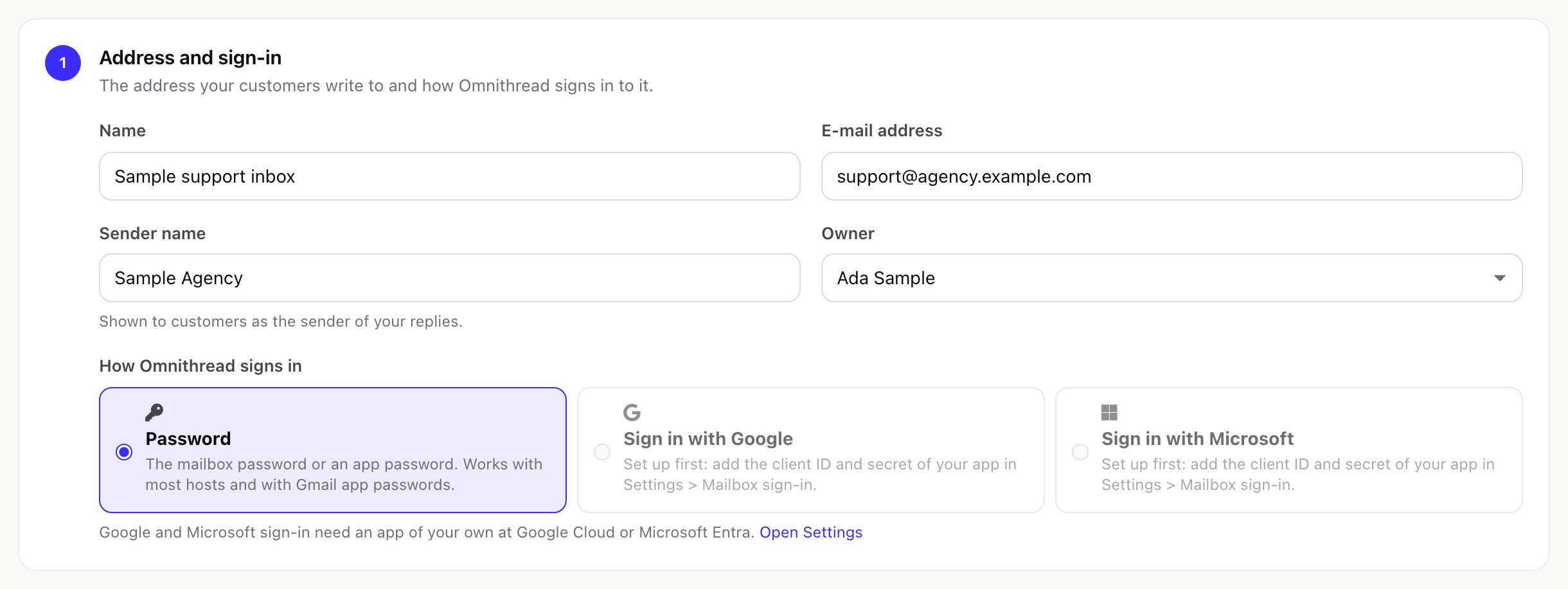
Open Omnithread > Setup > Channels, press Add a channel and choose E-mail. The form has four parts.
- Address and sign-in. A name your team sees, the e-mail address, the sender name customers see, the owner, and how Omnithread signs in: Password, Sign in with Google or Sign in with Microsoft. Google and Microsoft need an app of your own first (Google, Microsoft).
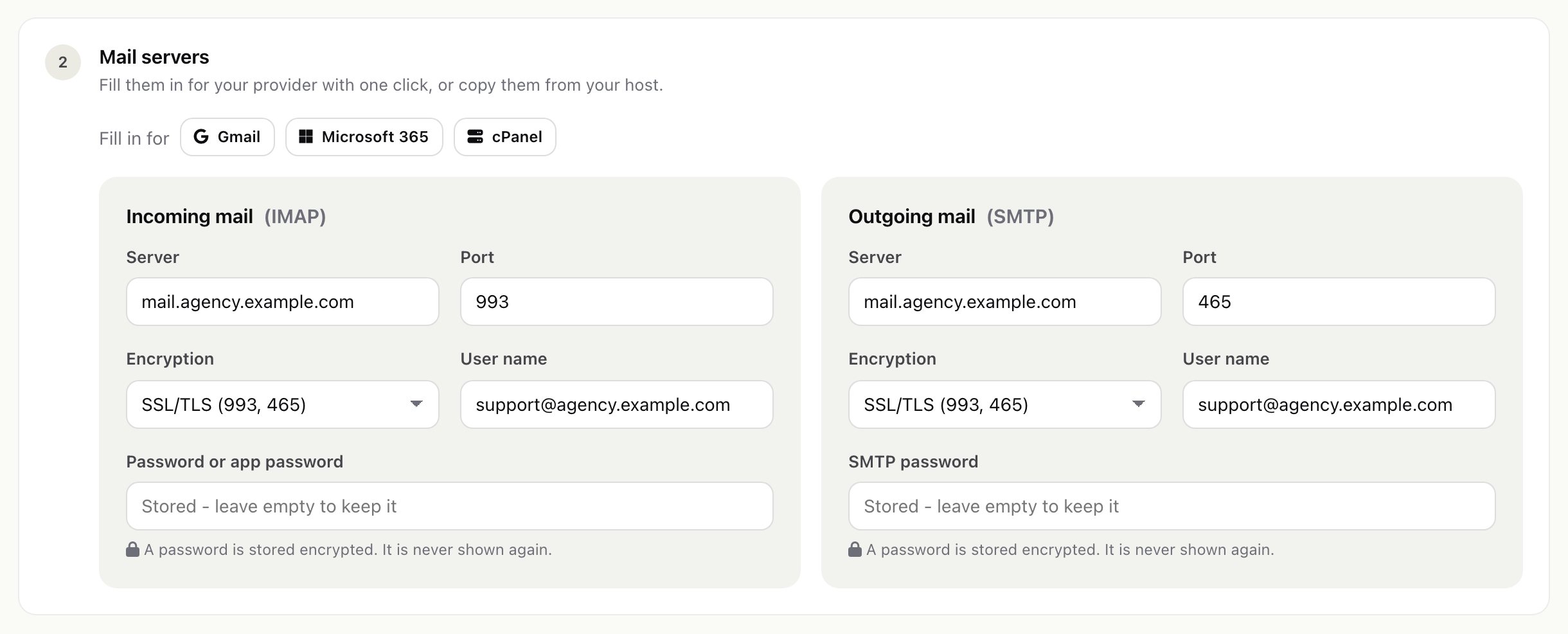
- Mail servers. Press Gmail, Microsoft 365 or cPanel to fill in the usual values, or copy them from your host. Leave the SMTP password empty to use the IMAP password.
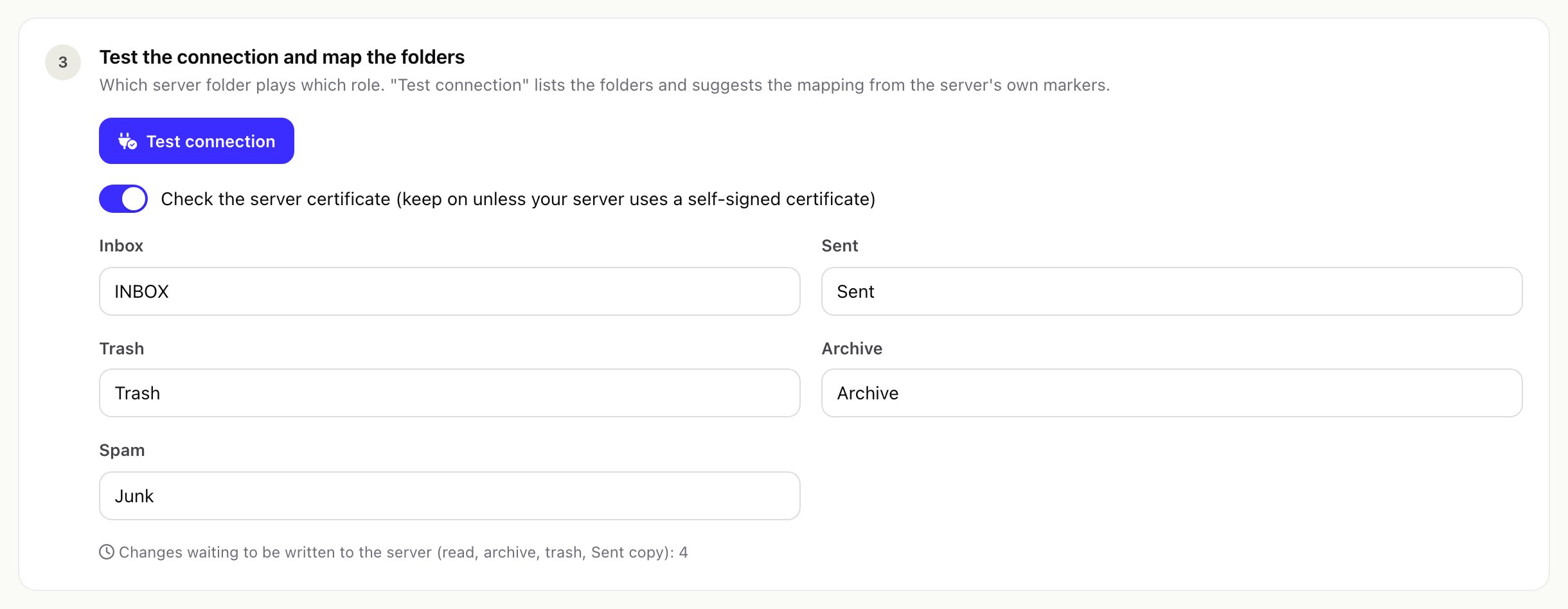
- Test the connection and map the folders. Test connection tries IMAP and SMTP with what is in the form, lists the server's folders and suggests which folder is Inbox, Sent, Trash, Archive and Spam. Keep Check the server certificate on unless your server uses a self-signed certificate.
- Who can use it. A personal mailbox is used only by its owner. Switch on Shared mailbox and tick the staff members and roles who work on it. Set Import the last N days (0 reads everything), a mailbox signature, an optional AI tone, and keep Active on. Press Save mailbox.
03Server values
| Preset | Incoming (IMAP) | Outgoing (SMTP) |
|---|---|---|
| Gmail | imap.gmail.com, port 993, SSL/TLS | smtp.gmail.com, port 465, SSL/TLS |
| Microsoft 365 | outlook.office365.com, port 993, SSL/TLS | smtp.office365.com, port 587, STARTTLS |
| cPanel and most hosts | Usually mail.yourdomain; the user name is the full e-mail address | Ask your host for the port and encryption |
Encryption choices: SSL/TLS (ports 993 and 465), STARTTLS (ports 143 and 587) and None (not recommended). If the test says the port expects the other encryption, switch it.
04Gmail with an app password
The quickest way for one Gmail or Google Workspace mailbox: switch on 2-step verification for the Google account, create an app password (Google account > Security > App passwords) and paste it as the password. IMAP must be enabled in the Gmail settings. Google's help: Sign in with app passwords.
05Sign in with Google
Use this when you do not want to store a password, or when app passwords are not allowed in your Google Workspace. You need your own OAuth client in Google Cloud once; then any number of mailboxes can sign in with it.
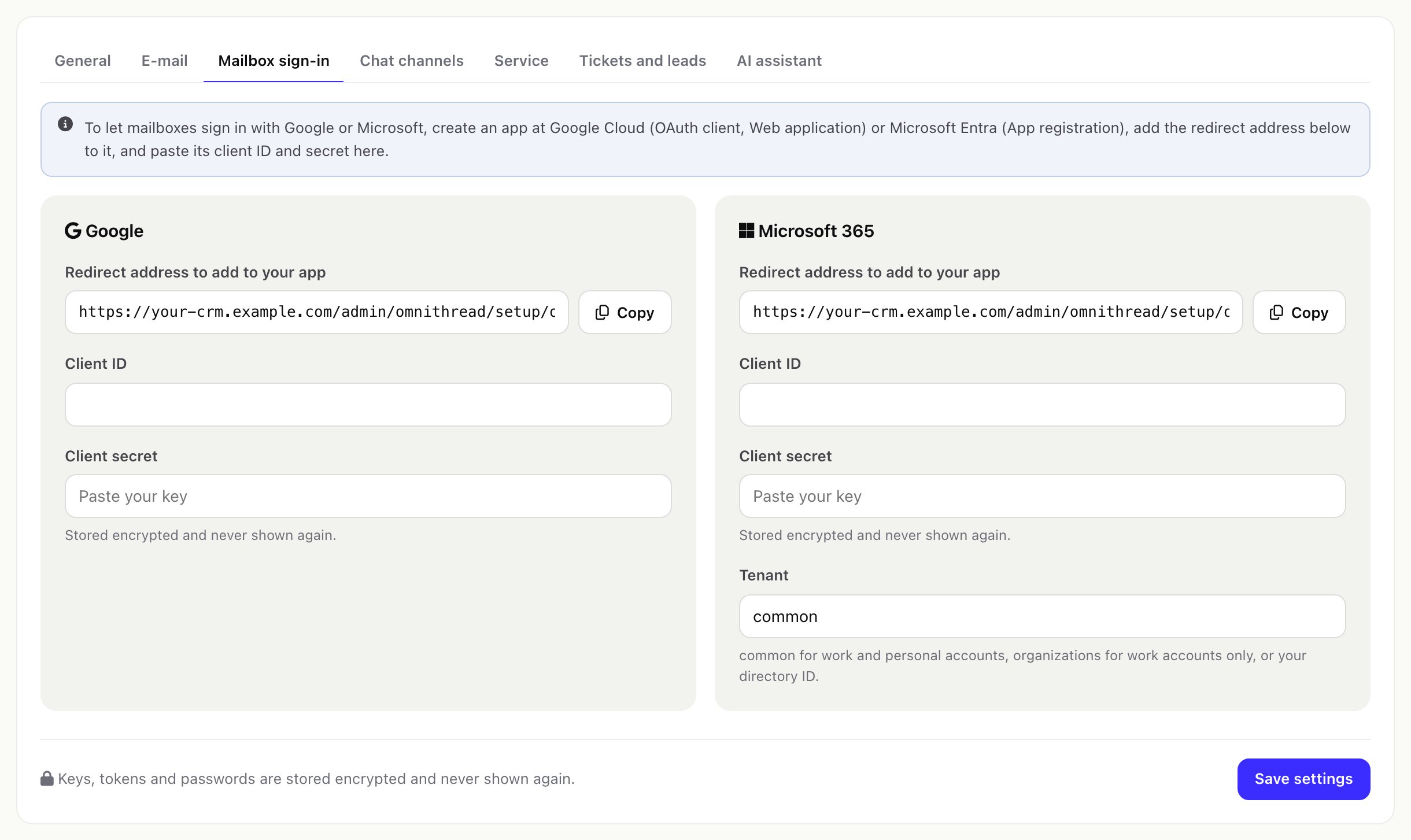
- Copy the redirect address. In Omnithread open Setup > Settings > Mailbox sign-in. Copy the Google Redirect address to add to your app. It looks like
https://your-crm.example.com/admin/omnithread/setup/oauth_callback/google. - Create the OAuth client. In the Google Cloud console create an OAuth client of the type Web application and add the redirect address as an authorised redirect URI. Omnithread asks for the scope
https://mail.google.com/, which Gmail requires for IMAP and SMTP sign-in. - Paste the client ID and secret. In Settings > Mailbox sign-in, then press Save settings. The secret is stored encrypted and never shown again.
- Sign in the mailbox. Open or add the mailbox, choose Sign in with Google and save. Google opens; sign in with the mailbox's account and allow access (including offline access). You come back to the mailbox, which now shows Signed in with Google.
An app of the type External may need Google's verification before people outside your organisation can use it; an Internal app in Google Workspace is limited to your own organisation. See Google's app verification help and IMAP and SMTP with OAuth.
06Sign in with Microsoft 365
Microsoft 365 and Outlook.com mailboxes no longer accept plain passwords for IMAP and SMTP, so use this method for them.
- Copy the redirect address. Take the Microsoft one from Setup > Settings > Mailbox sign-in (
https://your-crm.example.com/admin/omnithread/setup/oauth_callback/microsoft). - Register an app. In Microsoft Entra (App registrations) register an app with that address as a Web redirect URI, and create a client secret. Omnithread asks for
IMAP.AccessAsUser.All,SMTP.Sendandoffline_access. Microsoft's guide: IMAP and SMTP with OAuth. - Paste the client ID and secret. Also set the Tenant:
commonfor work and personal accounts,organizationsfor work accounts only,consumers, or your directory (tenant) ID. Save. - Sign in the mailbox. Choose Sign in with Microsoft on the mailbox and save, as for Google. IMAP and authenticated SMTP must be switched on for that mailbox in Microsoft 365.
Tokens are refreshed automatically. A Google or Microsoft token is only ever sent to that provider's own mail servers. Disconnect on the mailbox removes the sign-in; the mailbox then needs a password again.
07First sync and large mailboxes
- Import the last N days limits the first sync (default for new mailboxes: 30 days, Settings > E-mail). 0 reads the whole mailbox.
- Messages per cron run and mailbox (default 50) keeps each cron run short; a big import simply continues on the next runs. The Sync now button (two circling arrows) next to a mailbox in the inbox's channel list reads it at once.
- Attachments larger than Max attachment (MB) are not stored; files your team uploads are limited by Max upload (MB) and by the server's own upload limit.
08Mail servers on your own network
For safety, the mailbox form refuses server addresses that point to this server, to cloud metadata services or to a private network. If your mail server really is on the same private network as the CRM, switch on Allow mail servers on the local network in Settings > E-mail. This server itself and metadata addresses stay blocked.