
Install on a copy first.
Then connect one channel at a time.
Requirements, upload and activation, the Perfex cron job, staff permissions, the first run, updates, deactivation and uninstall.
01Requirements
| What | Needed | Why |
|---|---|---|
| Perfex CRM 3.2 or newer | Required | Bought separately. The download does not include Perfex. |
| PHP 8.1 or newer | Required | The System check refuses older versions. |
PHP extension openssl | Required | Encrypts passwords, tokens and keys (AES-256-GCM) and opens secure connections. |
PHP extension mbstring | Required | Reads messages in every language. |
PHP extension curl | Required | Talks to WhatsApp, Messenger, Instagram, Telegram, Twilio, Google, Microsoft and the AI provider. |
stream_socket_client and stream_socket_enable_crypto not disabled | Required for e-mail | Mail is read and sent with the module's own IMAP and SMTP clients. The PHP imap and sockets extensions are not needed. |
PHP extensions dom and iconv | Recommended | dom cleans HTML e-mail; iconv helps with old character sets. |
| MySQL or MariaDB | Required | The database your Perfex already uses. The module adds 39 tables with your Perfex table prefix. |
| The Perfex cron job, every 5 minutes | Required | Reads mail, sends the outgoing queue and retries, runs SLA timers, ticket replies, health checks and report tables. |
A public https:// address for the CRM | Required for chat channels | WhatsApp, Messenger and Instagram deliver only to a public https address; Telegram and Twilio need one too. The website chat and the rating page are public pages as well. |
A writable uploads/ folder | Required | The module creates uploads/omnithread/ for the encryption key file and stored attachments. |
| Outgoing connections from the server | Required | To your mail server's IMAP and SMTP ports (usually 993, and 465 or 587), and to the providers you connect. |
Composer, Node.js and command-line access are not needed to install the module.
02What is in the download
upload/omnithread.zip: the module. This is the file you upload in Perfex.documentation/: this documentation, to open offline.licenses/THIRD-PARTY-LICENSES.md: credits and licences.README.md: a short pointer to these steps.
Do not upload the whole download from CodeCanyon as a module. Unzip it first and use upload/omnithread.zip.
03Install and activate
- Back up. Take a backup of the CRM files and the database you can restore. Try the module on a staging copy of your CRM first if you have one.
- Check the uploads folder. The web server user must be able to write to the
uploads/folder of your Perfex. On activation the module createsuploads/omnithread/and writes its encryption key there. If it cannot, the key is kept in the database instead (see The encryption key). - Upload the module. In Perfex open Setup > Modules, choose Upload module, pick
upload/omnithread.zipand install it. If your host blocks uploads, unzip the file on your computer and copy theomnithreadfolder into themodules/folder of your CRM over FTP, so thatmodules/omnithread/omnithread.phpexists. - Activate. In Setup > Modules press Activate next to Omnithread - Shared Team Inbox. Activation creates the module's tables and settings and writes the encryption key file. It does not change Perfex's own tables or files. The AI assistant starts switched off.
- Give staff access. See Staff permissions. Administrators have every permission already.
- Open the module. The Perfex sidebar now has an Omnithread menu. Open Omnithread > Setup; it starts on Getting started.
04The cron job
Omnithread does its timed work on the Perfex cron job; there is no separate cron command for the module. Set up the Perfex cron as shown in Perfex under Setup > Settings > Cron Job and let it run every 5 minutes. The module registers its own cron task with Perfex when it is active.
On every run the module:
- reads new mail from every active mailbox (a large first import continues on the next runs),
- links new conversations of the last 30 days to customers and leads that were added since,
- sends queued replies and retries failed ones,
- brings snoozed conversations back,
- runs automatic translation for channels where an administrator switched it on (only when AI is on),
- checks SLA timers, sends staff replies written in linked Perfex tickets out to the customer's channel,
- checks channel health and refreshes the report tables for the last two days,
- and once a day cleans up: attachments past their retention setting, old presence marks, webhook log rows older than 14 days and idle website chat sessions.
The System check shows when the cron last ran Omnithread and turns yellow after 15 minutes without a run.
05Staff permissions
Omnithread adds its own permissions to Perfex. Set them per staff member (the staff member's Permissions) or per role. Administrators can do everything.
| Permission (as shown in Perfex) | What it allows |
|---|---|
| View all conversations of their mailboxes | Opens the inbox and the dashboard. Sees every conversation of the channels shared with the staff member. |
| View own (assigned conversations and own mailboxes) | Sees only conversations assigned to them and conversations of channels they own, in the inbox, search, reports and AI. |
| Write, reply and add notes | Writes and sends replies, new e-mails and internal notes, uses drafts, manages their own canned replies, retries failed messages. |
| Assign, change status, labels and links | Assigns and claims, status, priority, labels, snooze, merge and bulk actions, links people to customers and leads, creates leads, tickets and tasks, approves AI suggestions, manages labels and shared canned replies. |
| Move to trash, delete labels | Moves conversations to the trash, sees the Trash view, and can export or erase a person's data. |
| Send replies without approval | Lifts the approval step. Matters only together with the next permission. |
| Write replies that someone with "Approve replies" sends | Without "Send replies without approval", this staff member's replies wait for approval instead of being sent. |
| Approve replies written by others | Approves and sends, or returns with a note, replies waiting for approval. |
| Manage channels, mailboxes, website chat and WhatsApp templates | Setup > Channels, the website chat, WhatsApp templates, the webhook log and replay, the System check. |
| Manage teams, business hours, SLA policies and rules | Setup > Teams, Business hours, SLA policies and Rules. |
| See the dashboard and reports | The dashboard and every report, with CSV export. |
| Settings | Setup > Settings, sample data, the System check, AI settings and automatic translation. |
Sending is tied to Write, reply and add notes. A staff member with that permission sends replies directly unless you also give them Write replies that someone with "Approve replies" sends and leave Send replies without approval off; then their replies go through approval.
Each channel also has a Who can use it list (staff members and roles). A non-administrator sees a channel only when they own it, added it, or are on that list. Mailboxes have the same list once they are marked Shared mailbox. Customer, lead, invoice, ticket and project details in the person panel follow the staff member's own Perfex permissions.
06First run: Getting started
Omnithread > Setup > Getting started lists five steps that turn green by themselves: run the System check, connect a channel, create a team, add a rule or an SLA target, and receive your first message.
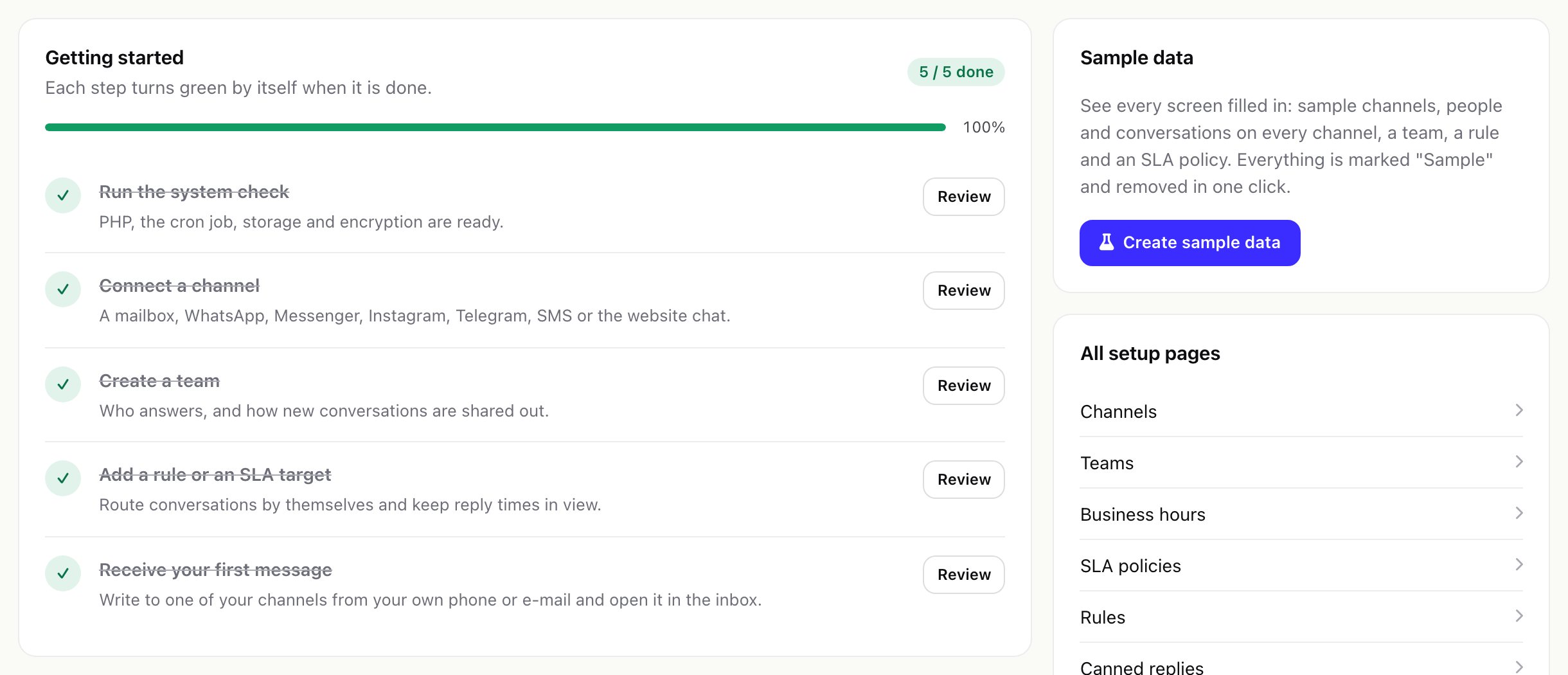
Sample data (needs the Settings permission) fills every screen so you can look around before connecting a real channel: one switched-off channel of every type, sample people on example.com addresses and +1 555 01xx numbers, three weeks of conversations, a team, a switched-off rule and a switched-off SLA policy. No rule, notification, rating link or SLA alert fires for it. Remove sample data deletes exactly what was created; your own records stay. Remove it before you start with real customers.
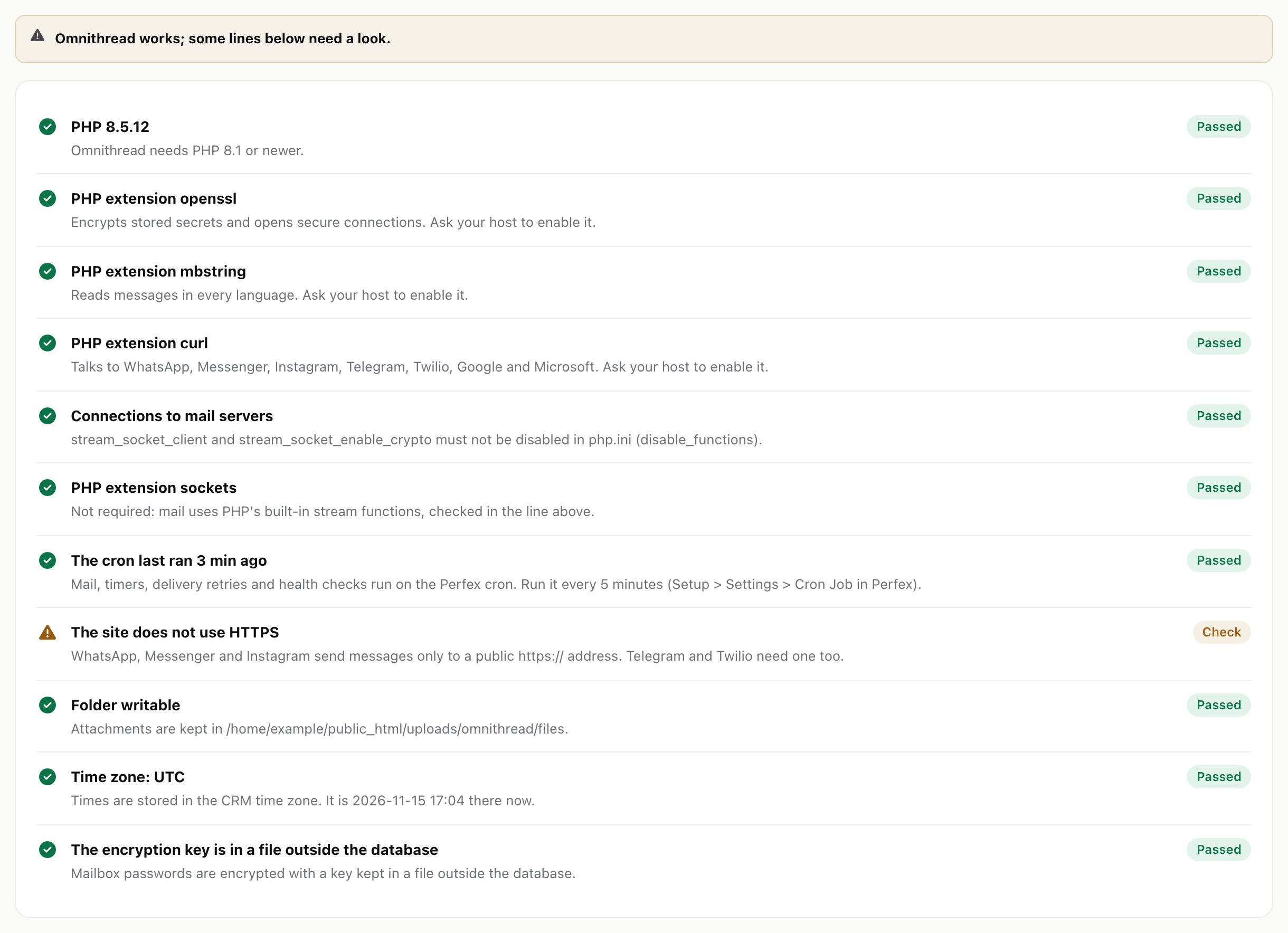
Then open System check and fix any red line. Every line says what to do.
07Updating to a new version
- Back up. Save the database, the
modules/omnithread/folder and the wholeuploads/omnithread/folder. The key file in it is needed to read stored passwords and tokens. - Replace the module files. Upload the new
omnithread.zipin Setup > Modules, or replace themodules/omnithread/folder over FTP. Do not deleteuploads/omnithread/. - Upgrade the database. Do it if Perfex offers it for the module in Setup > Modules. The upgrade, like every activation, adds missing tables, columns, indexes and settings. It never drops a table or a row, and it keeps your settings, channels, conversations and key.
- Check. Open Setup > System check and send one test message to each channel.
Read the changelog before you update.
08Deactivate
Deactivating keeps every table, setting, file and the key. While the module is off nothing is read or sent, and its public addresses (webhooks, website chat, rating links, the portal page) answer "not found". Messages that providers try to deliver in that time are refused; whether a provider tries again later depends on that provider. Reactivate to continue where you left off.
09Uninstall
Uninstall removes all 39 Omnithread tables (conversations, messages, notes, people, rules, reports, logs), every Omnithread setting, the stored attachment files (in the default folder and in a custom storage folder) and the encryption key file. Export what you need and back up first. Perfex's own records (customers, contacts, leads, tickets, tasks) are not touched, and the mail on your mail servers stays where it is.
- At the providers nothing changes. Remove the webhook addresses in your Meta app and in the Twilio Console yourself. For Telegram, register another webhook for the bot or remove it with the Bot API method
deleteWebhook. Remove the website chat line from your website. - The data folder goes too. Uninstall also removes
uploads/omnithread/with its guard files. A custom storage folder you created yourself stays, empty of Omnithread files.