
Every conversation has an owner.
Every reply goes out on its own channel.
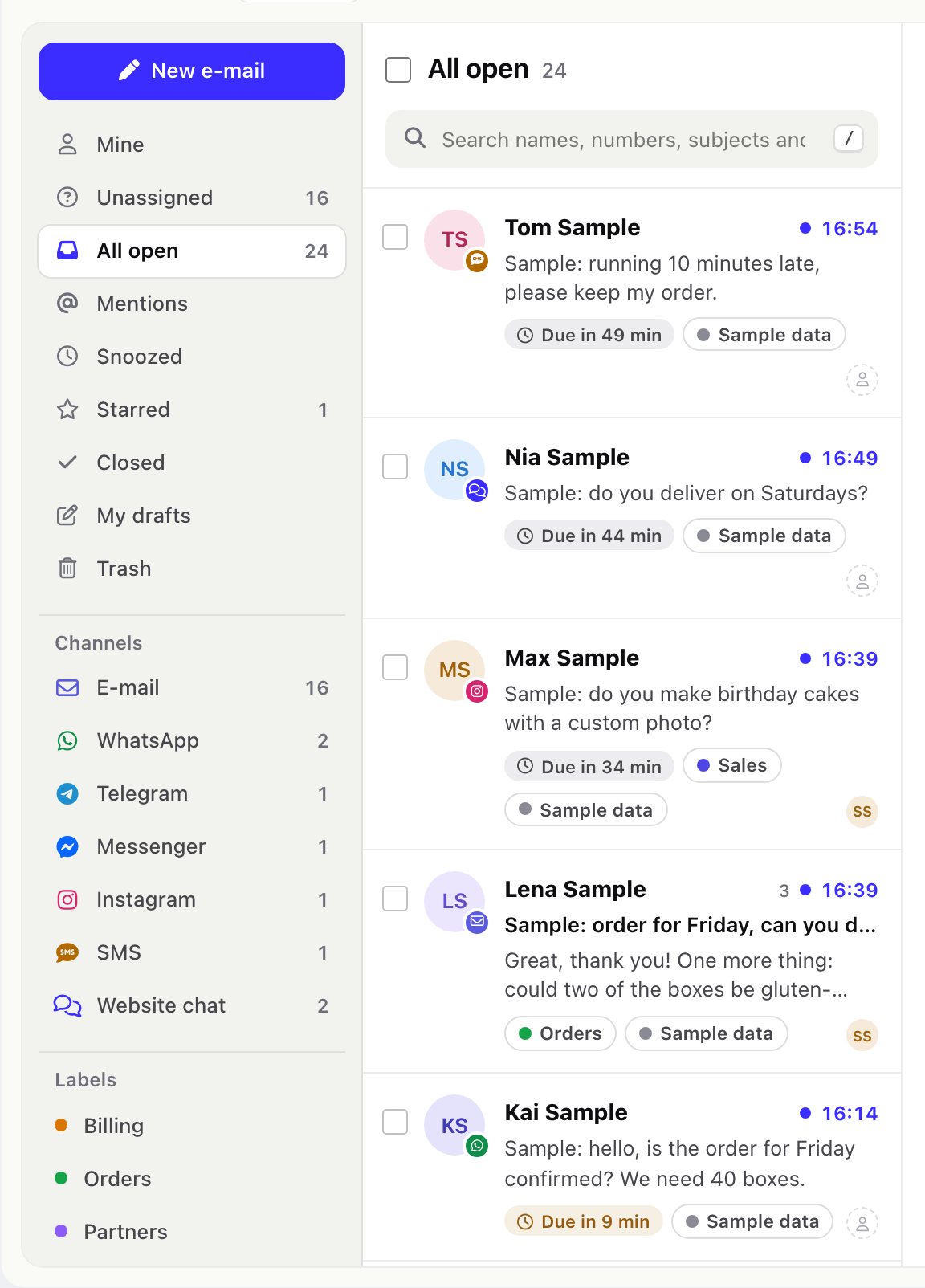
The shared inbox in three panes: views and channels, the conversation list, the conversation with its person panel. Assign, reply, leave notes, snooze, merge and approve without leaving the page.
01The inbox at a glance
Open Omnithread > Inbox. The menu item shows how many conversations you can see have unread messages.
- Left: New e-mail, the views (Mine, Unassigned, All open, Mentions, Snoozed, Starred, Closed, My drafts, Trash), your teams, the channels you may open with their counts (a channel with a problem says Needs attention), labels and saved views.
- Middle: the conversations of the view, newest first, with channel icon, SLA time left, labels and owner. Search looks for names, numbers, subjects and message text within the view you are in.
- Right: the open conversation and, beside it, the person panel.
02Views, filters and saved views
- Mine: assigned to you. Unassigned: nobody owns it yet. All open: everything not closed. Mentions: a colleague mentioned you in a note (it stays until you open the conversation). Snoozed: hidden until a time you picked. My drafts: replies you started and did not send.
- Click a team, a channel or a label to filter by it. Combine with search.
- Save view stores the current view, channel, label, team and search under a name in the left column. Staff with the Settings permission can save a view for the whole team.
- Staff with only View own see conversations assigned to them and those of channels they own, everywhere: in views, search, counters, reports and AI.
03A conversation
The header shows the person, the channel and the channel account, the status, labels, the linked customer or lead and the SLA timer (First reply due in … or overdue by …). This conversation and All channels switch the timeline between this conversation and everything with this person on every channel.
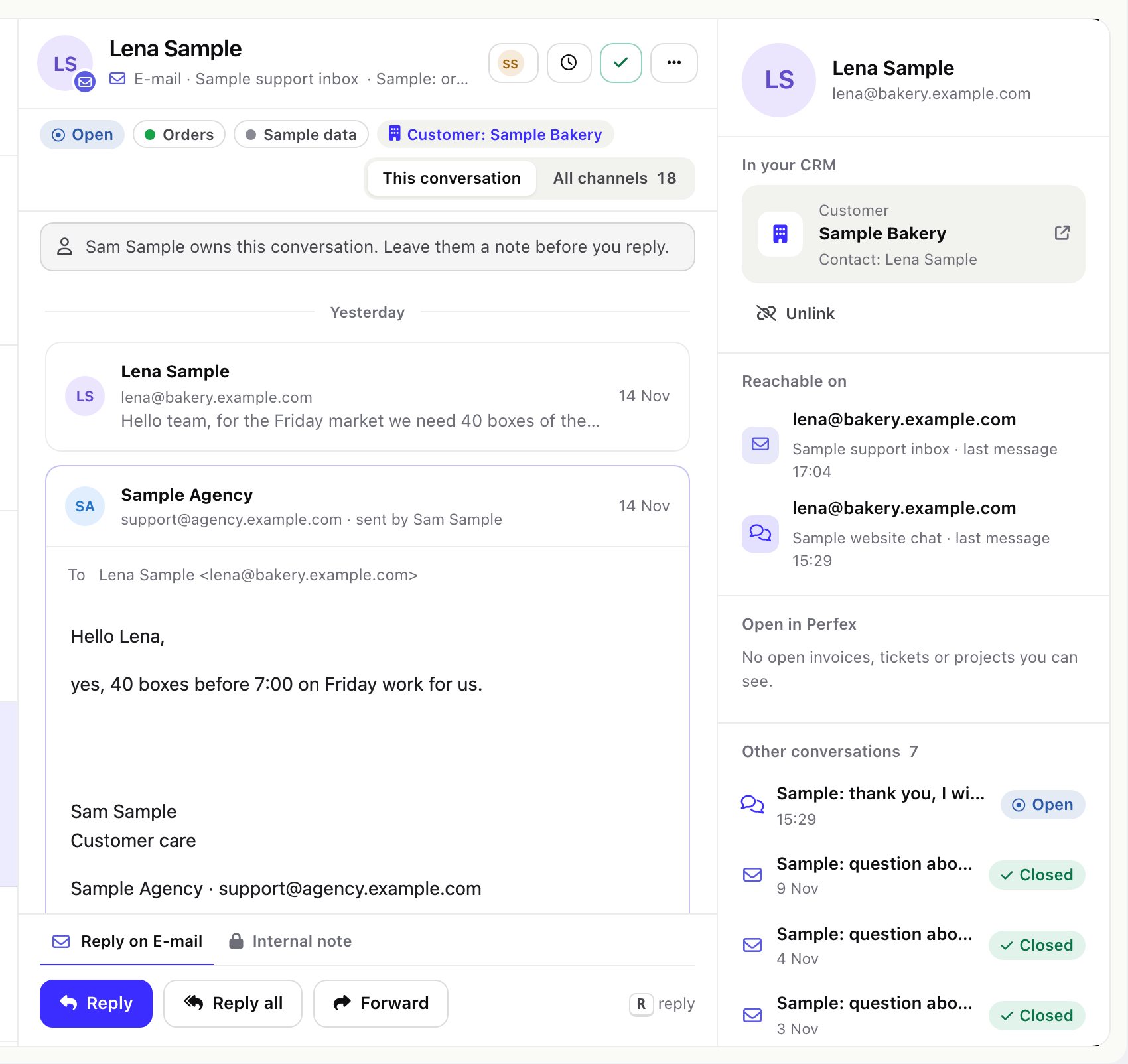
- Take it (the hand button) assigns the conversation to you; Assign picks a colleague, who gets a Perfex notification when Notify a staff member when a conversation is assigned to them is on in Settings. Only staff who may open the channel can be picked.
- Status: open, waiting (for the customer) or closed. After a team member replies, the status becomes what Status after a reply says in Settings (default: waiting). A customer who writes again reopens a closed conversation, within the Reopen window (default 7 days); after that a new conversation starts.
- Priority low, normal, high or urgent; Star; Labels (several per conversation, managed in Setup > Labels); Mark as unread.
- Snooze hides the conversation until later today (3 hours), tomorrow at 09:00, next Monday at 09:00 or a date and time you pick. The cron brings it back.
- Move to trash needs the delete permission; for e-mail the messages also move to the Trash folder on the mail server.
- When a colleague has the same conversation open, or is writing a reply right now, a notice says so, so the customer does not get two answers. Every reply shows who sent it.
04Replying
- Chat channels: the reply box at the bottom says which channel it sends on (Reply on WhatsApp). Enter sends, Shift + Enter adds a line. Attach files with the paperclip. For SMS a counter shows the number of SMS parts.
- E-mail: Reply, Reply all, Forward and New e-mail open the e-mail composer with Cc/Bcc, formatting, attachments, templates and address suggestions. Your own signature (and the mailbox signature) is added. Drafts are saved as you type and appear under My drafts.
- Canned replies: type
/in the reply box and the name of a saved reply. Manage them in Setup > Canned replies; shared ones are for the whole team, personal ones only for you. Templates can use merge fields such as{{contact_firstname}}(full list in the reference). - Failed messages show Not delivered with the reason and a Try again button. When a provider answers that a later attempt may work (for example a rate limit), the message is retried automatically after 1, 5, 15, 60 and 240 minutes.
- A WhatsApp, Messenger or Instagram conversation whose 24-hour window has closed accepts only an approved WhatsApp template (WhatsApp) or waits for the customer (Messenger, Instagram). See WhatsApp.
05Internal notes and mentions
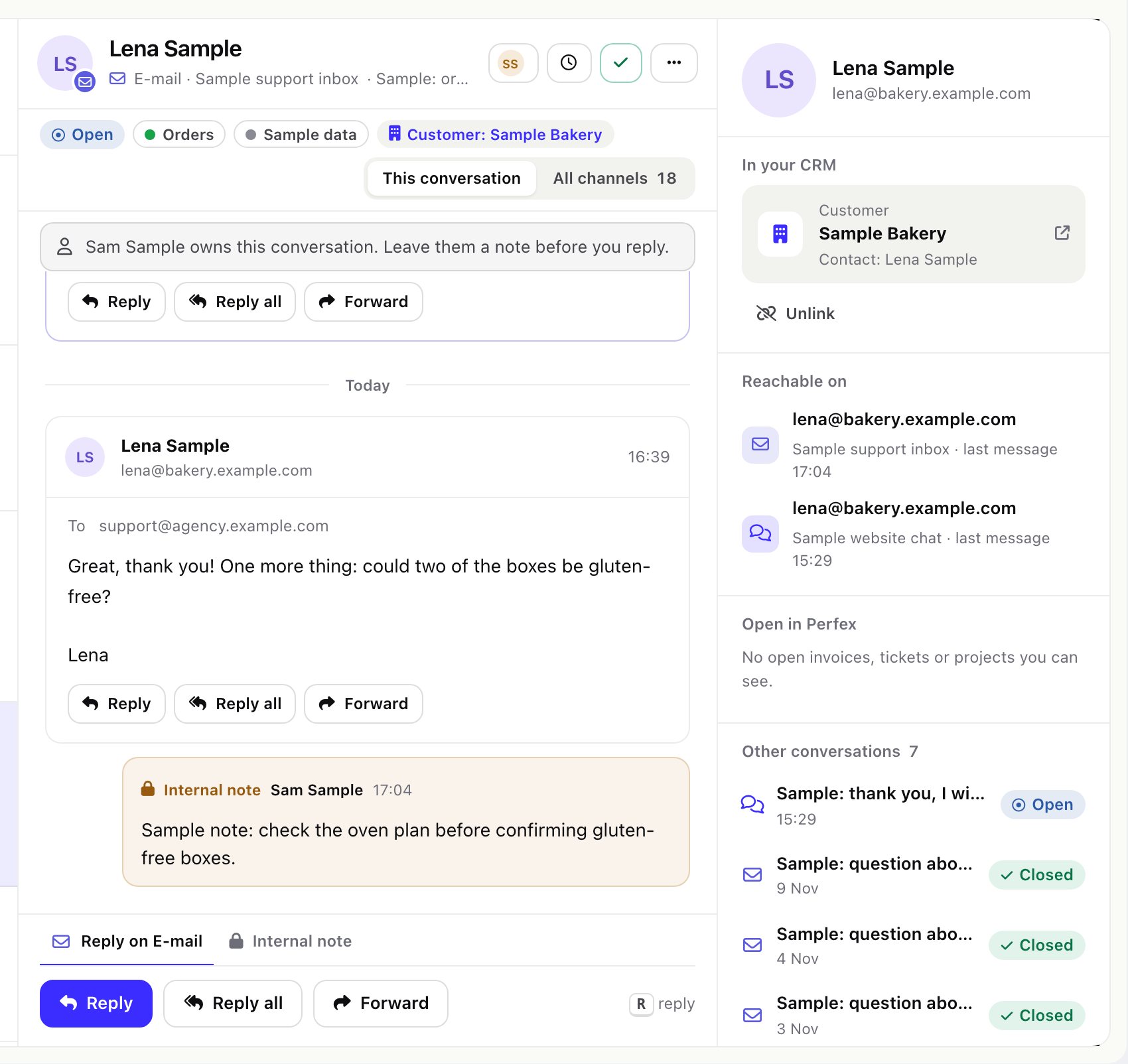
Switch the box at the bottom to Internal note. Notes are for your team only; the customer never sees them and they are never sent to an AI provider. Type @ and a colleague's first name to mention them: they get a Perfex notification and the conversation appears under their Mentions. Only colleagues who may open the conversation can be mentioned.
06Reply approval
- Set it up. Give new staff Write, reply and add notes and Write replies that someone with "Approve replies" sends, without Send replies without approval. Give the reviewer Approve replies written by others.
- Write. The new staff member's button says Send for approval. Their reply waits in the conversation; they can Withdraw it.
- Approve or return. The reviewer sees Reply from … waiting for your approval and presses Approve and send, or Return with a note to send it back to the author.
A reply that is changed after it was submitted is never sent in its old form: it goes back to its author and has to be submitted again.
07Bulk actions, merge and undo
- Tick conversations in the list (or press
x) to assign, assign to yourself, label, mark as waiting, close or merge them together. - Merge joins the selected conversations into the newest one. Only conversations of the same channel account are merged.
- Bulk changes and merges can be undone for one hour with Undo.
08Keyboard shortcuts
| Key | Does |
|---|---|
j / k | Next / previous conversation |
Enter | Open the selected conversation |
r | Reply on the conversation's channel |
n | Write an internal note |
e | Close or reopen the conversation |
a | Assign the conversation to me |
x | Select the conversation |
/ | Search |
Ctrl K (Cmd K on a Mac) | Command bar: go to a view or a channel, or search |
Esc | Close a menu, the panel or the conversation |
? | Show the shortcuts |
09Light and dark
Settings > General > Theme sets the module's screens to Light, Dark or Follow the browser. The module's styles load only on its own pages and on the customer profile, so the rest of Perfex keeps its look.