
A chat window on your website.
Answered from the same inbox.
The module's own chat widget, added with one line of code. No third-party chat service is involved: visitors talk to your CRM directly.
01Create the website chat
- Open the form. Omnithread > Setup > Channels > Add a channel > Website chat.
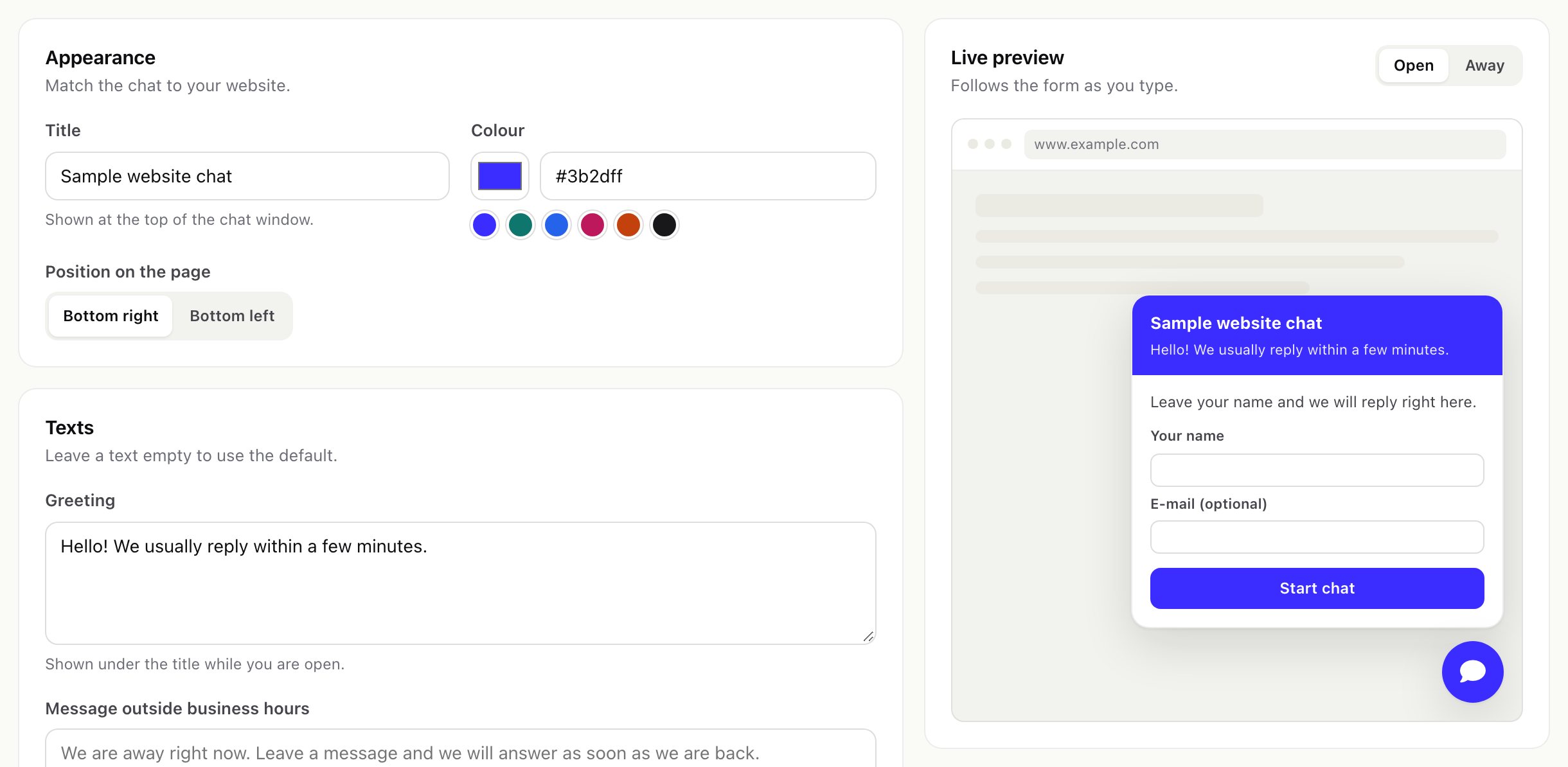
- Appearance. The title shown at the top of the chat window, the colour (type a
#colour or pick a ready one) and the position: bottom right or bottom left. - Texts. A greeting shown while you are open, a message shown outside business hours (visitors can still write), and an optional consent text: when filled in, visitors must tick it before the chat starts. Ask for the e-mail address makes the e-mail field required (off: optional). Let visitors e-mail themselves the chat offers a transcript, sent only to an address the visitor confirms.
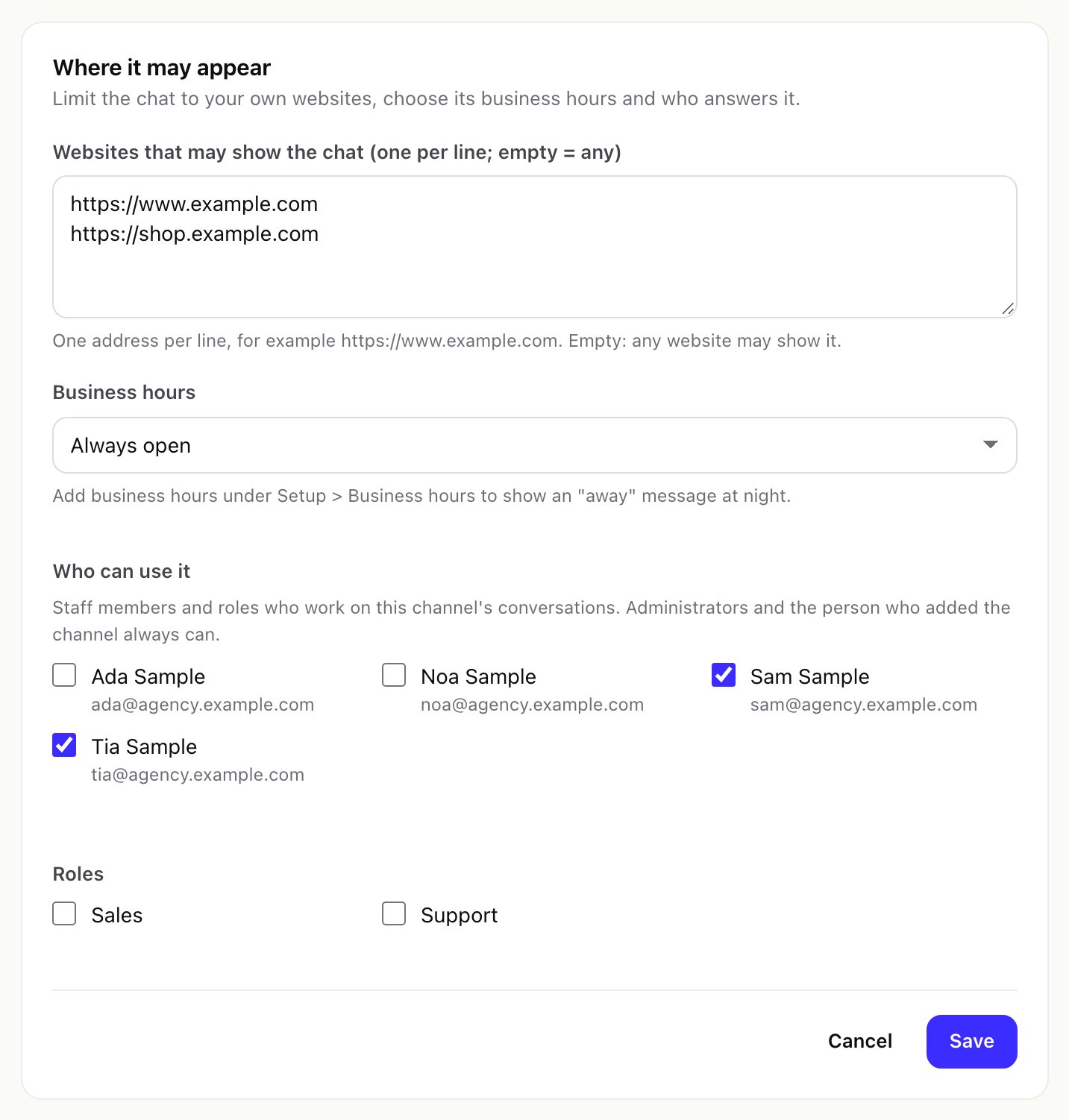
- Where it may appear. List your websites under Websites that may show the chat, one per line (see below). Pick the business hours the chat follows, and tick who works on its conversations.
- Save. The first time the button says Create the website chat. The live preview follows the form as you type; switch it between Open and Away to see both texts.
- Add the embed code. Paste it into your website and keep The chat is on switched on.
02Set the allowed websites
When Websites that may show the chat is empty, any website may load your chat. Someone could put it on their own pages, and every visitor there could open conversations in your inbox under your company's chat title. With the list filled in, Omnithread answers the chat only for pages on those addresses, and browsers refuse it everywhere else.
- Enter the address of each site exactly as visitors open it:
https://www.example.com. Use one line per address.https://example.comandhttps://www.example.comare different sites; list both if both open your website. - Enter only the scheme, the host and, if needed, a port. An address with a path such as
https://www.example.com/contactis refused when you save. - The check relies on the address the visitor's browser reports. It keeps your chat off other websites; it is not a password. Rate limits (below) still protect the inbox from scripts.
03Add the embed code
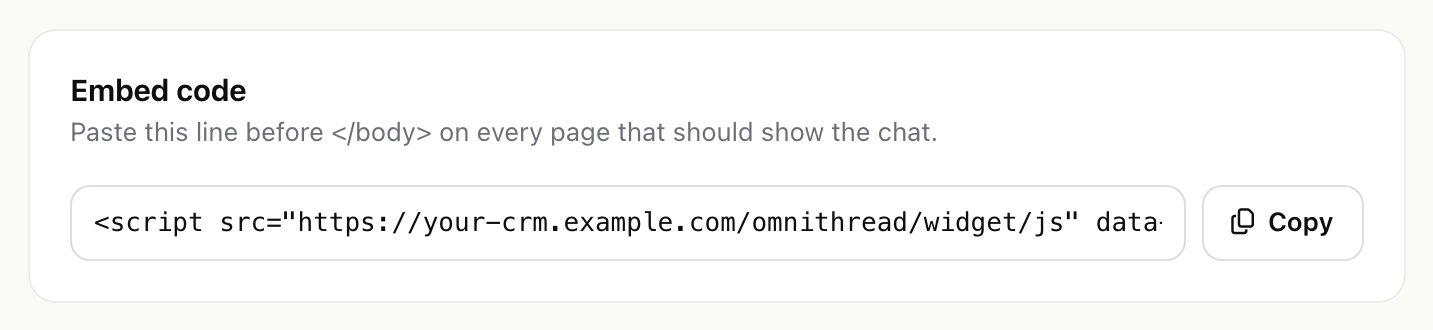
Copy the line from the Embed code box and paste it before </body> on every page that should show the chat. It looks like this (your address and number differ):
<script src="https://your-crm.example.com/omnithread/widget/js" data-account="8" async></script>In WordPress or a site builder, use the place for custom code in the page footer. If your website sends a Content-Security-Policy header, allow your CRM's address for scripts, styles and connections.
04What visitors see and what is stored
- The visitor gives a name (and an e-mail address, if you ask for it), then writes. Files can be attached up to Largest file a visitor may send (KB) (Settings > Chat channels, default 5,120 KB), and within the server's upload limit.
- Replies appear in the window by short polling: about every 4 seconds while the window is open and every 30 seconds while it is closed. Visitors see when your team is typing.
- The visitor's browser keeps a random chat token in the website's
localStorage; no cookie is set. Your CRM stores only a hash of that token, so a database copy cannot be used to read or write a chat. - Idle chat sessions are forgotten after Forget idle website chat sessions after (days) (default 30); the conversation stays. The visitor's network address is kept only as a keyed hash for the start limit and is cleared after a day.
05E-mail addresses typed into the chat
Anyone can type any e-mail address into a chat form. So Omnithread never links a chat to a customer or lead just because of the typed address: the conversation shows E-mail given in the chat, not confirmed. Link or merge the person by hand when you are sure (see People and records).
A transcript is mailed only after the visitor opens a confirmation link sent to that address; the conversation then shows confirmed. One address gets at most three confirmation e-mails a day. Transcripts and confirmations are sent through your Perfex e-mail settings.
06Flood protection
- At most 10 new chats per hour from one network address per chat channel.
- Website chat messages per visitor per minute (Settings > Chat channels, default 20).
- A message holds up to 4,000 characters.
07Messages in the client portal
Logged-in contacts get a Messages item in the Perfex client portal (https://your-crm.example.com/omnithread/portal). They see their own conversations on every channel, read only, and can write a new message. Those messages arrive through a website chat channel: choose which one under Settings > Chat channels > Client portal messages go through (default: the first website chat that is on). Without an active website chat the portal page cannot send. A contact never sees another contact's conversations, your internal notes or failed messages, and can send up to 30 messages an hour.