Route, time and rate conversations.
In plain sentences.
Teams that share out new conversations, business hours with holidays, SLA targets counted in business time, rules that read like sentences, and satisfaction ratings after a conversation is closed.
01Teams and automatic assignment
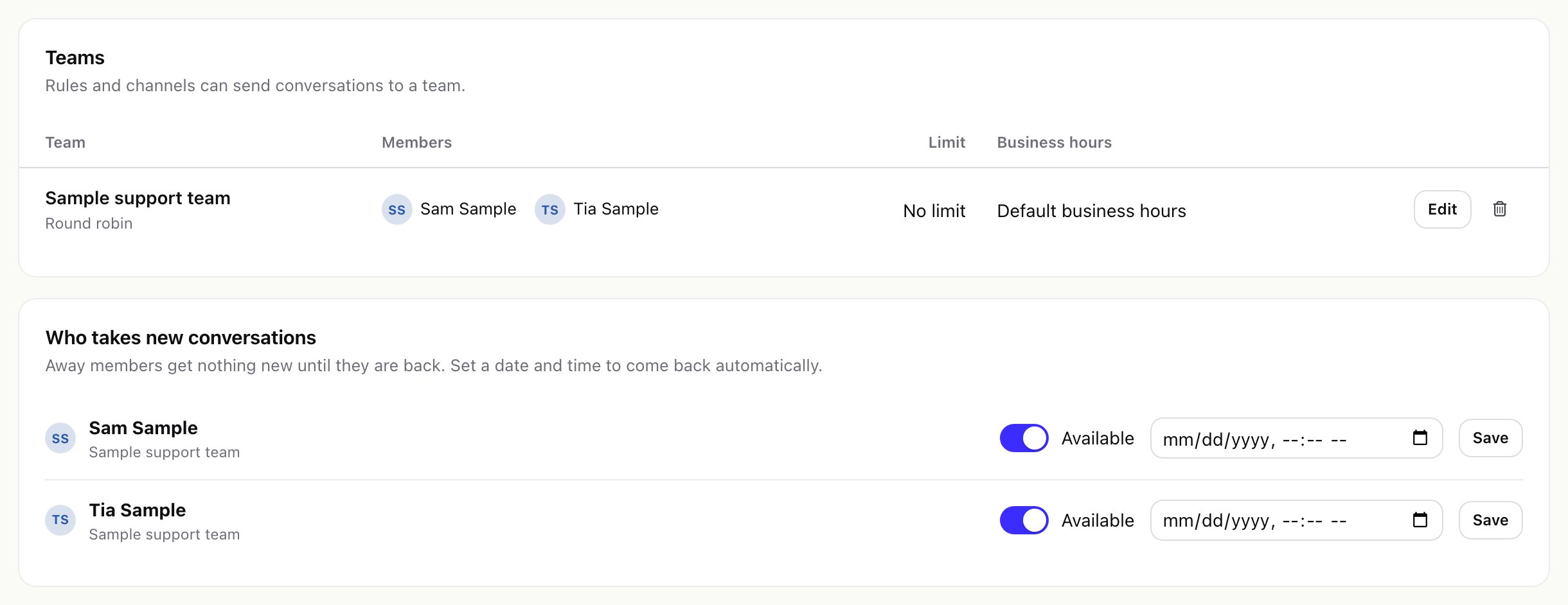
- Create a team. Setup > Teams > New team: a name, the members, how new conversations are shared out (Round robin: each available member in turn; Least busy: the available member with the fewest open conversations), an optional limit of Open conversations per member, optional business hours and an optional Perfex department (tickets made from the team's conversations go there).
- Send conversations to the team. Pick the team on a channel (step 1 of the channel form), so its new conversations belong to that team.
- Share them out. Add a rule When a new conversation starts … then assign to the team …. The rule action picks a member: someone available, not away, active in Perfex, below the team's limit and, when the team has business hours, inside them. A conversation that already has an owner keeps it.
- Mark people away. Under Who takes new conversations switch a member to Away, optionally with a date and time to come back automatically.
02Business hours
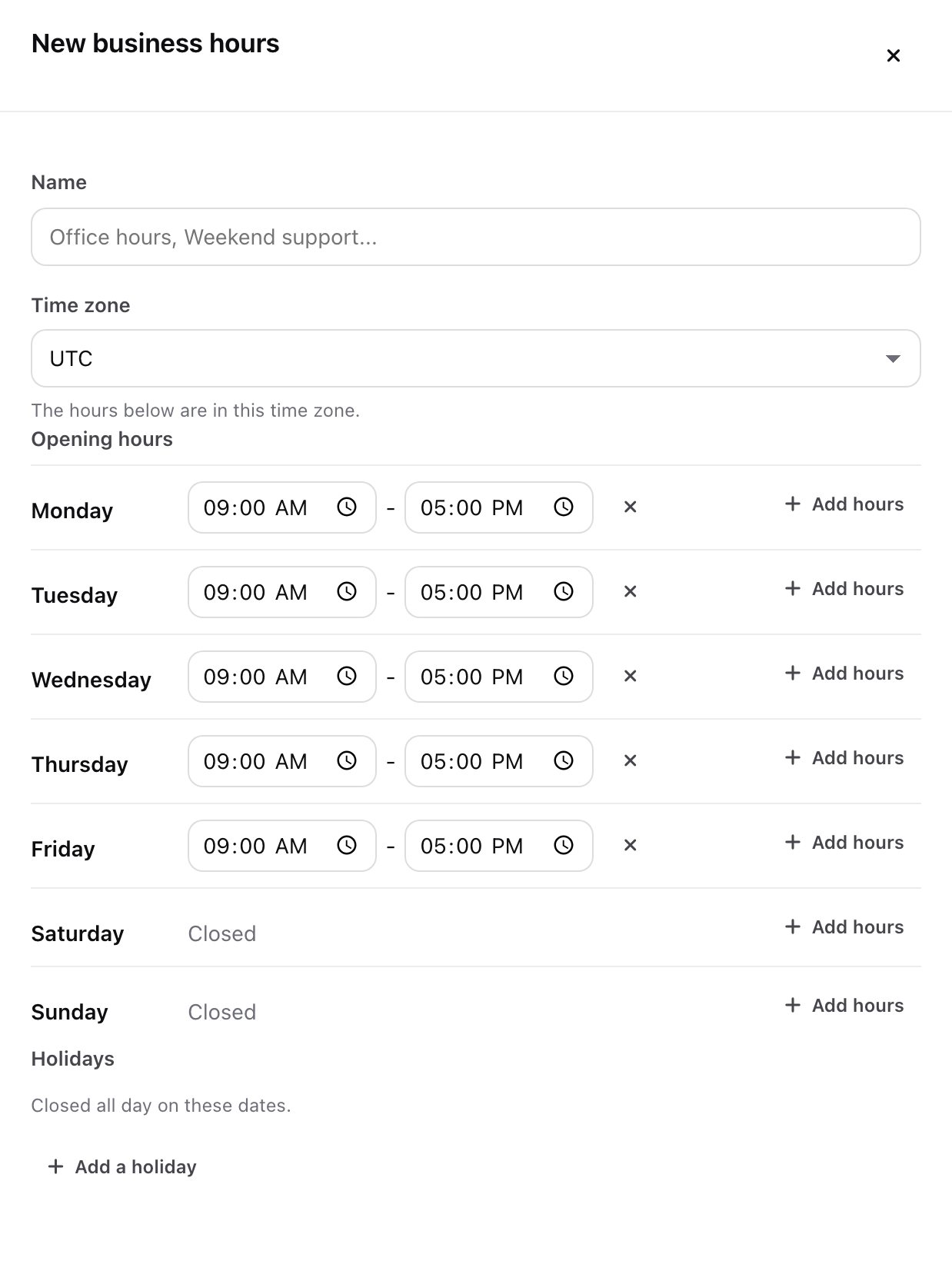
Setup > Business hours: create a calendar with a name, a time zone, opening hours per weekday (several ranges a day are possible) and holidays (closed all day). Make one the default with Make default, or choose it in Settings > Service > Default business hours.
Business hours are used by SLA policies, by the rule condition Time is within/outside business hours, by teams for assignment, and by the website chat for its away message. Without any calendar, SLA timers run around the clock.
03SLA policies
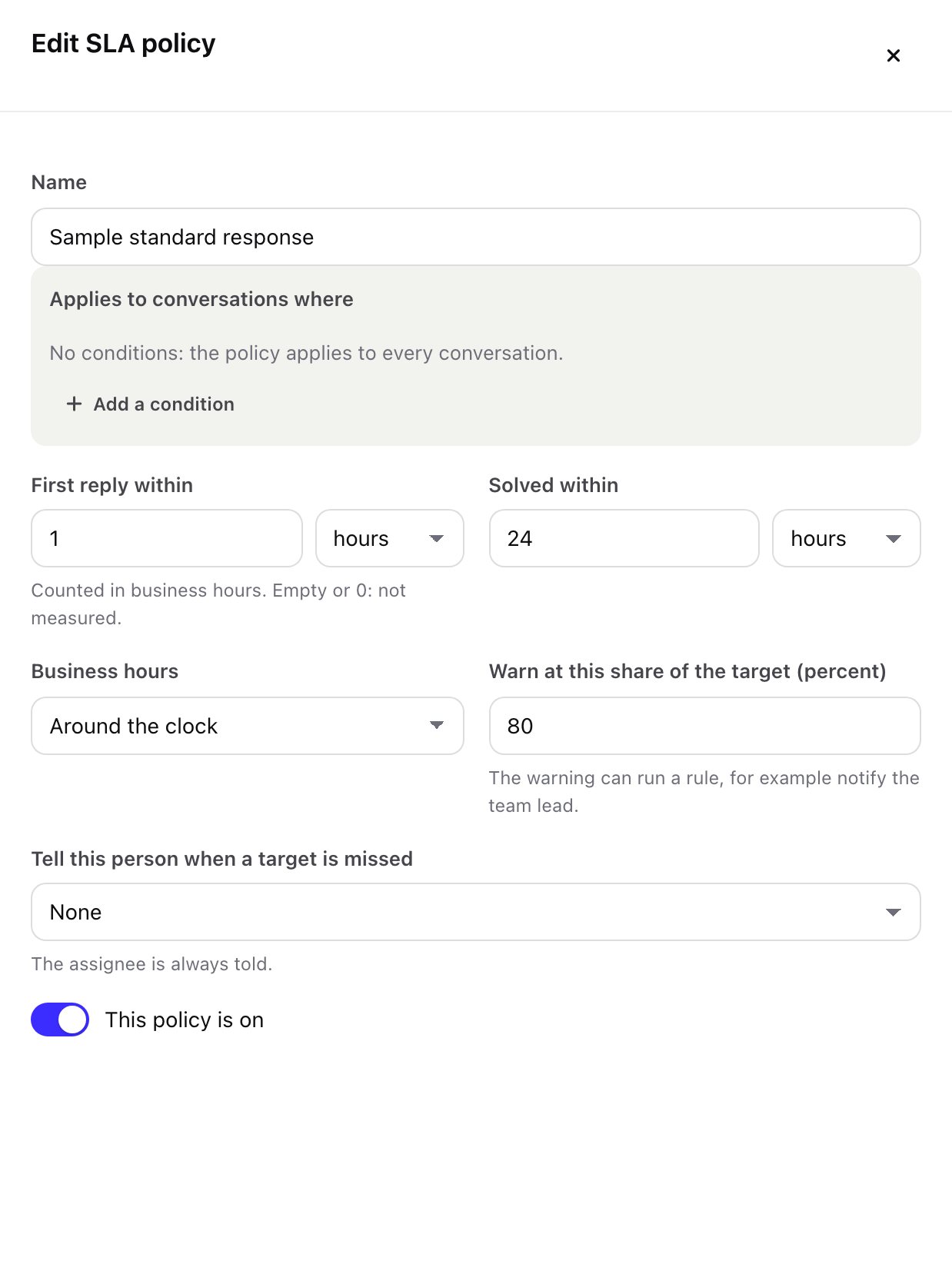
- Create the policy. Setup > SLA policies > New SLA policy: a name, optional conditions (no conditions = every conversation), First reply within and Solved within in minutes, hours or days of business time (empty or 0 = not measured), the business hours to count in, and Warn at this share of the target (default 80 %).
- Choose who is told. Optionally pick a person to tell when a target is missed. The assignee is always told.
- Mind the order. Policies are checked in order; the first active policy whose conditions match a conversation applies.
The first-reply clock stops at the first staff reply, the resolution clock when the conversation is closed; automatic messages stop neither. The inbox shows the time left on every conversation. A warning and a missed target can each run rules (triggers an SLA target is about to be missed and an SLA target is missed), and a missed target sends a Perfex notification to the assignee and the person you chose.
04Rules
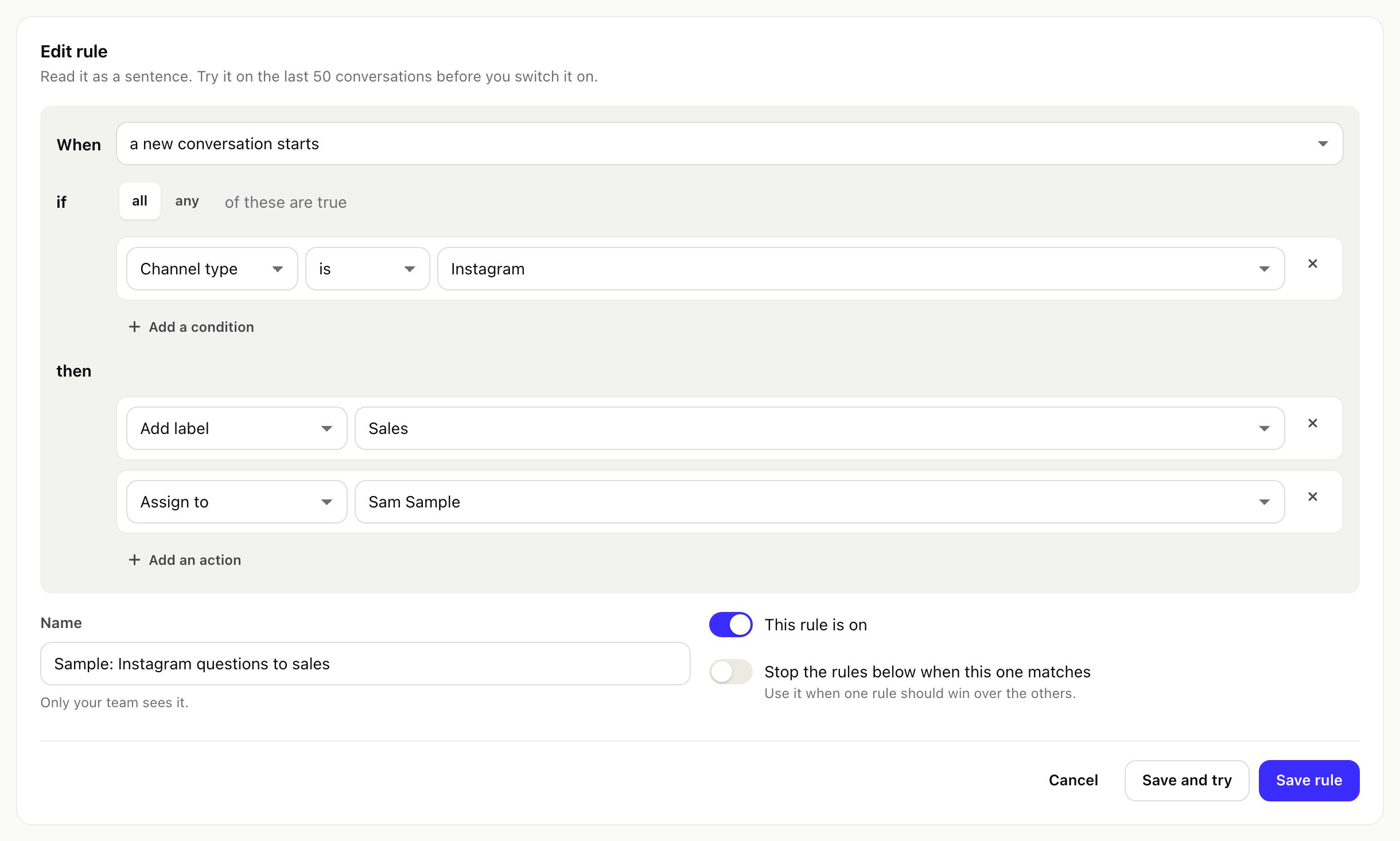
Setup > Rules > New rule. Every rule reads as a sentence: When something happens, if all (or any) of the conditions are true, then do the actions.
| Part | Choices |
|---|---|
| When | a new conversation starts · a customer writes · a team member replies · a conversation is closed · a conversation is reopened · an SLA target is about to be missed · an SLA target is missed |
| If (fields) | channel type · channel · subject · message text · sender e-mail · sender (known customer or lead, or not) · linked record · customer group · language code · priority · status · assignee · team · labels · hour of the day · day of the week · time within or outside business hours |
| Comparisons | is, is not, contains, does not contain, starts with, is one of, is none of, contains any of, is more than, is less than, is empty, is not empty, within or outside business hours |
| Then (actions) | assign to a staff member · assign to a team · add a label · set the priority · set the status · reply automatically (once per conversation) · close the conversation · create a ticket (department, priority) · create a lead · notify staff with a note |
- A rule can have up to 20 conditions and 20 actions. Rules run in the listed order; move them up or down. Stop the rules below when this one matches makes one rule win.
- Try (or Save and try) runs a dry run on the most recent conversations and lists the ones that would match. Nothing is changed.
- Every run is logged per action (done, skipped, failed); the list shows how often a rule ran and when last. A failed action does not stop the others, and a rule never runs again on a conversation while it is still running there.

05Satisfaction ratings (CSAT)
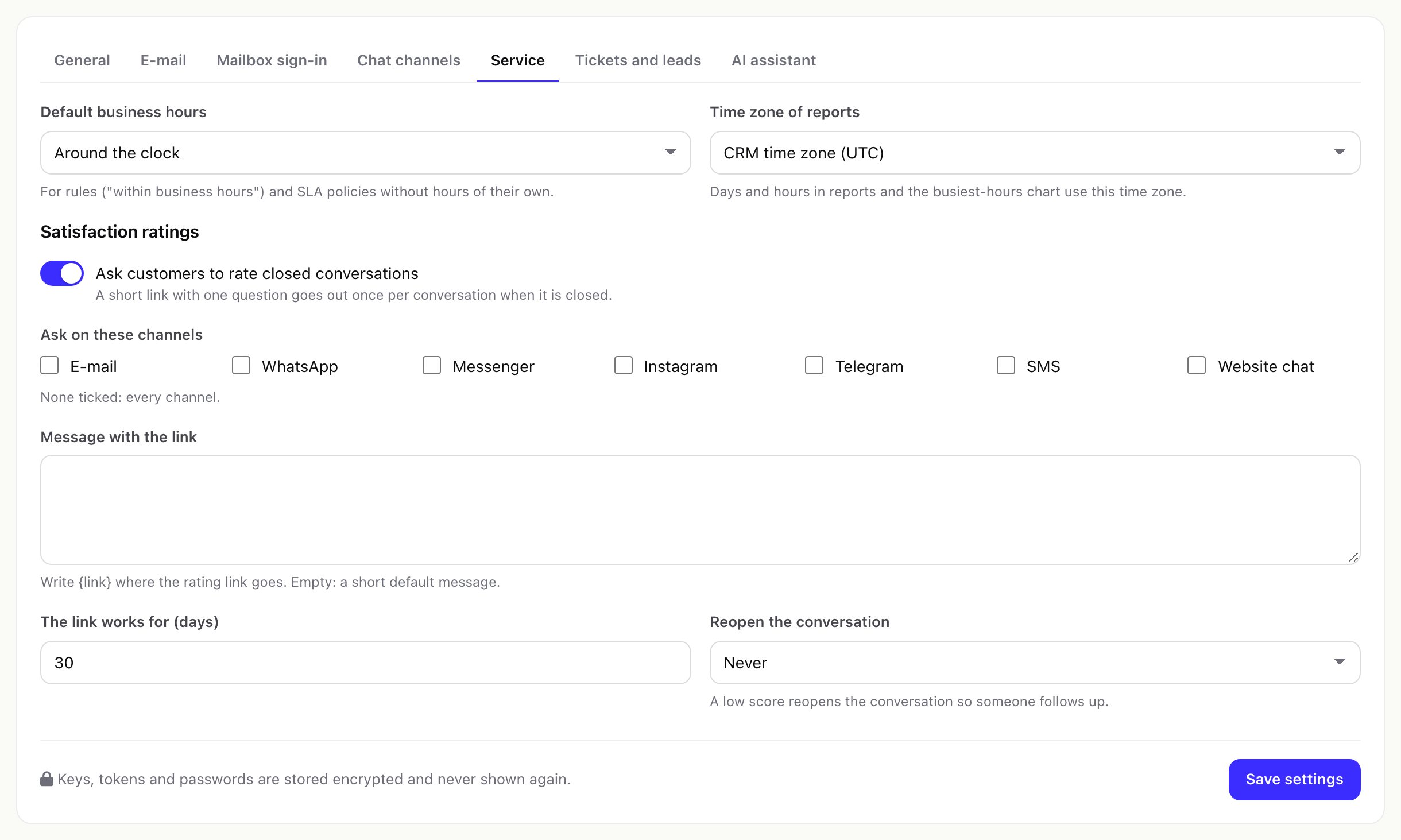
- Switch it on. Ask customers to rate closed conversations in Settings > Service. It is off by default.
- Choose the details. The channels to ask on (none ticked = every channel), the message (write
{link}where the link goes; empty = How did we do? Please rate this conversation: {link}), how many days the link works (default 7) and whether a low score reopens the conversation (never, or below 2 to 5). - What the customer gets: when a conversation is closed, one message with a link on the conversation's own channel. The page asks for a score from 1 to 5 and an optional comment. Each link works once; only a hash of it is stored.
Scores appear on the dashboard and in Reports > Satisfaction, by team member and channel.